Admin panel
Page by page. Admin pages only open on your home ("office") network — over the internet you get My Phone only, with the admin menu hidden.
Dashboard
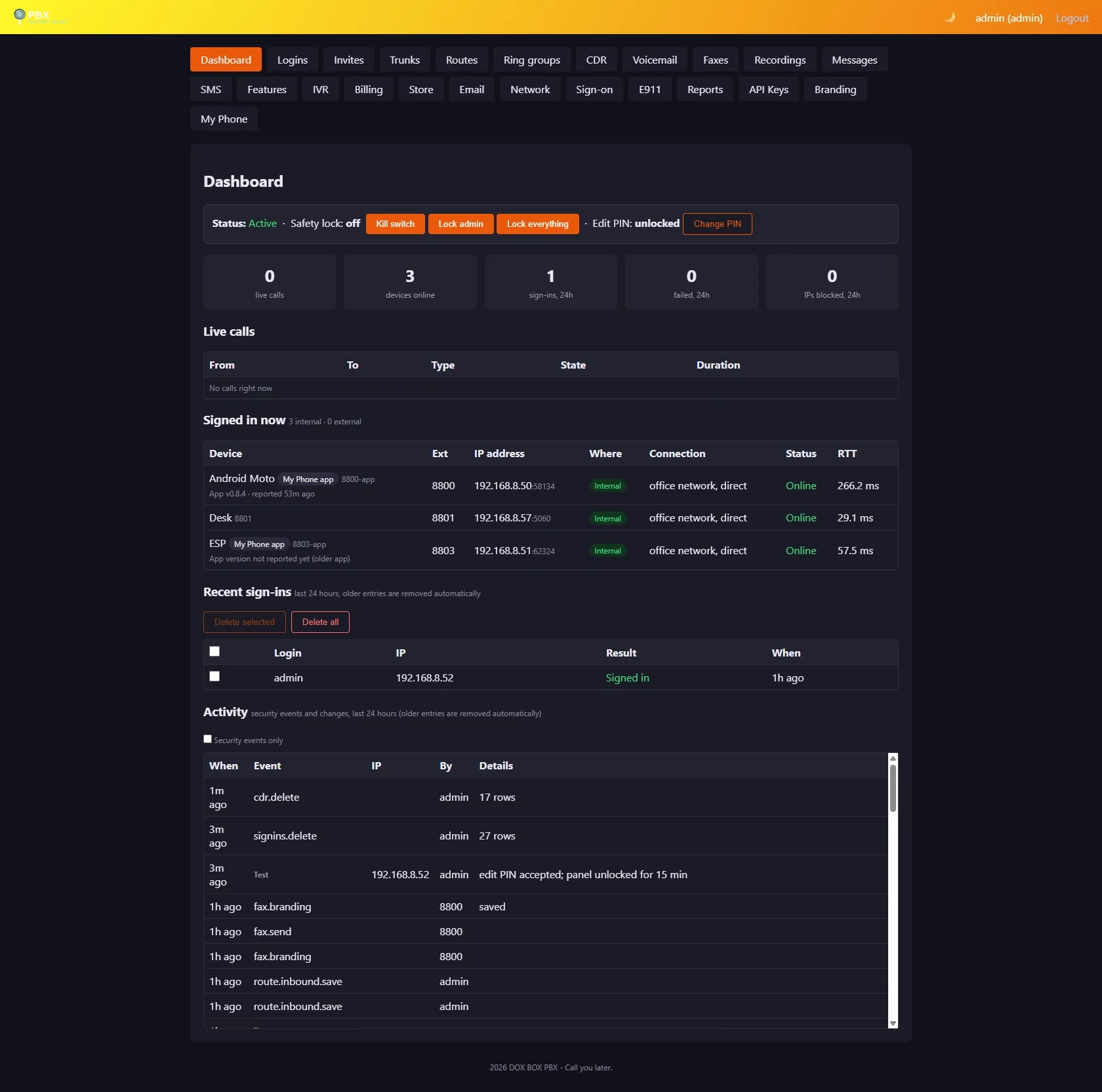
- Status bar:
- Kill switch hangs up every call and disconnects every phone — for stopping abuse like toll fraud. Release it to go back to normal.
- Lock admin freezes the admin side only: calls and My Phone keep working, but nothing in the admin panel or API can change.
- Lock everything also freezes My Phone (handy overnight). Kill switch and lock always work, and both send an alert.
- Edit PIN (optional, 6–12 digits): once set, every change in the admin panel asks for it first. Unlock with PIN works from any admin page and lasts 15 minutes after your last change, or until Lock now. A wrong PIN says so; repeated wrong PINs are blocked for a while.
- Tiles: live calls, devices online, sign-ins and failures in the last 24 hours, IPs blocked in the last 24 hours.
- Live calls: who is calling whom, by name, with type (internal/incoming/outgoing/911), state and duration.
- Signed in now: every registered phone — IP, internal or external, connection (direct or via edge with TLS + SRTP), status, response time. The Android app shows up too, under its owner with a My Phone app tag, while it's signed in for incoming calls — with the app version it last reported underneath (the app reports its version whenever it talks to the PBX), so you can spot a user stuck on an old build at a glance.
- Recent sign-ins and Activity: security events and changes from the last 24 hours, updating every 10 seconds.
Logins
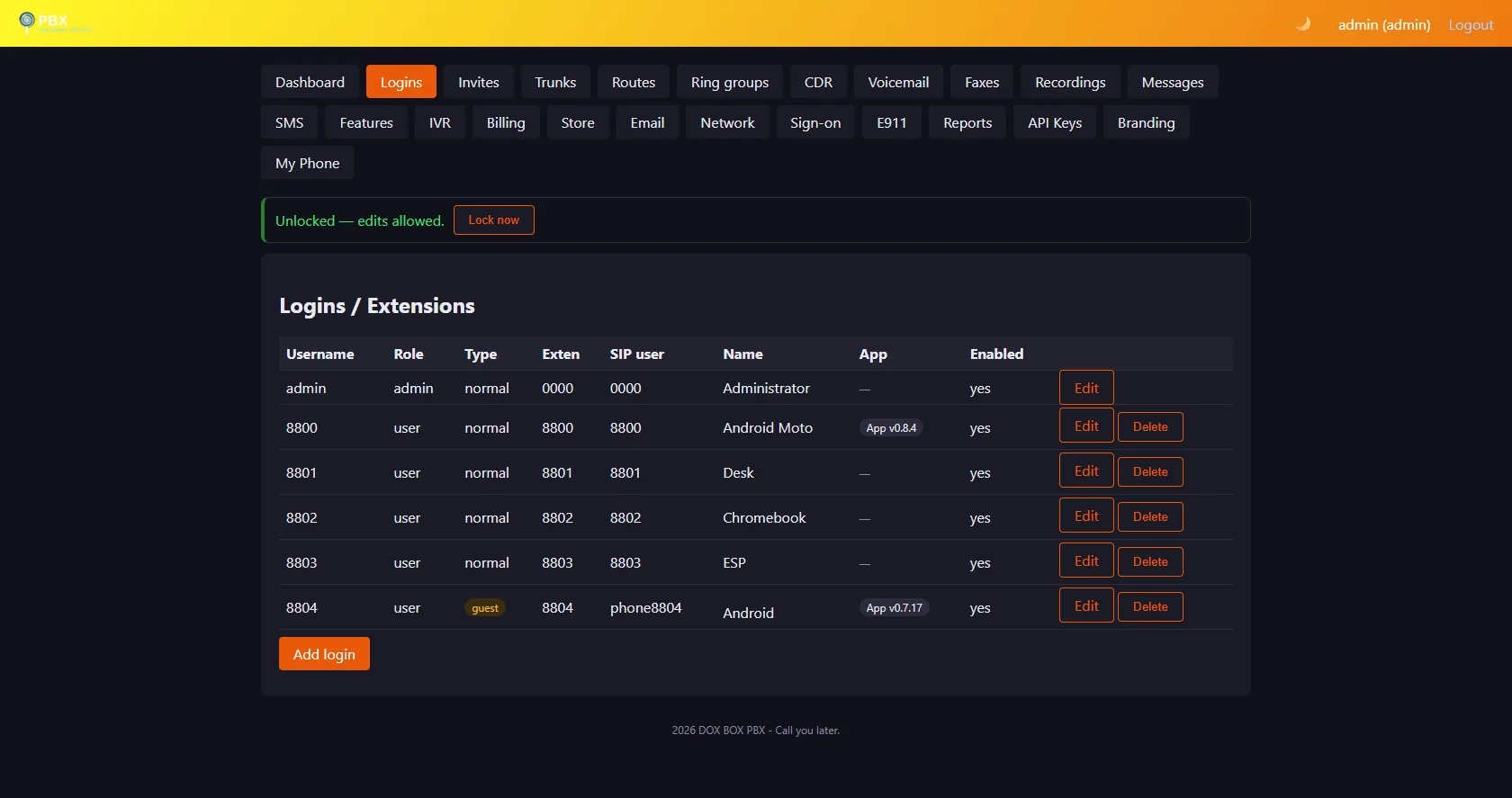
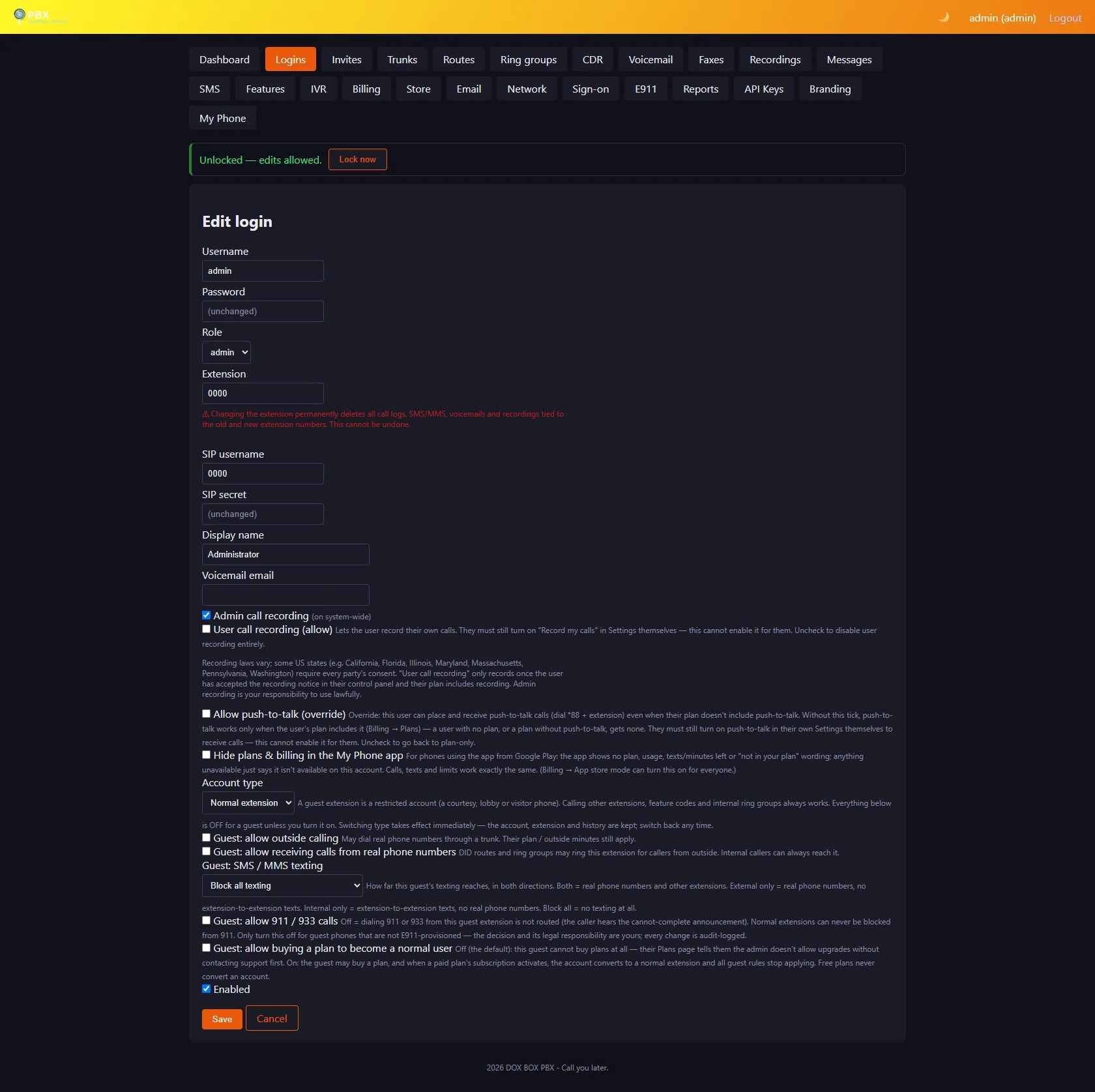
Users are extensions: username, panel password, extension number, SIP username and password, display name, notification email, recording flags, and enabled. The list also shows each account's Type — normal or guest. Disabling a login signs it out everywhere at once.
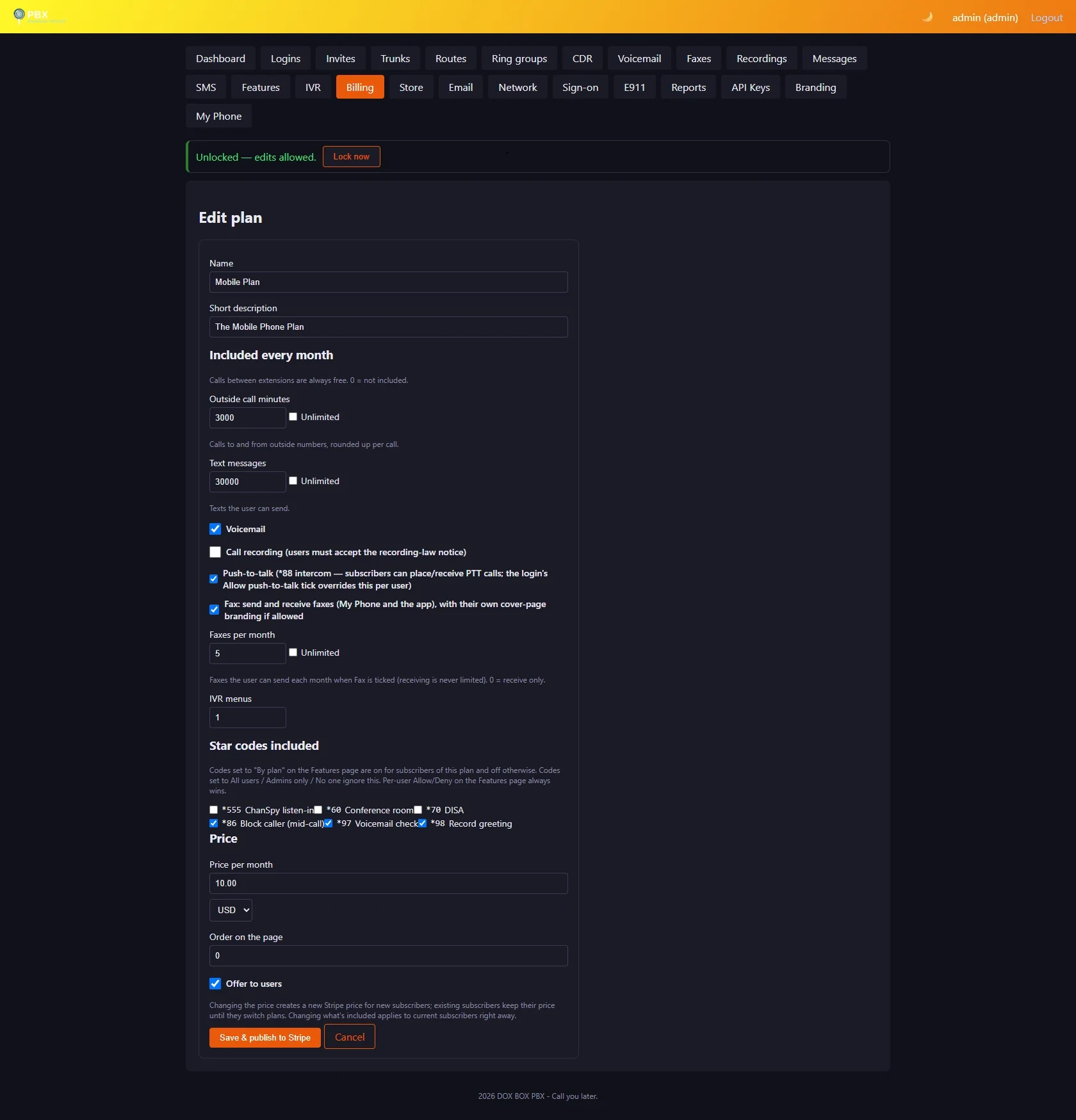
The editor also has Allow push-to-talk (override): push-to-talk normally comes from the user's plan (tick Push-to-talk when editing a plan under Billing → Plans; subscribers get it right away, and editing the plan later updates them). Tick the override to give this user push-to-talk (*88 + extension — see feature codes) even when their plan doesn't include it — or when they have no plan at all, guests included. Untick it and the user falls back to plan-only. Either way, allowing is not switching it on: the user turns push-to-talk on themselves in their own Settings, and pages only connect when they accept them.
The editor's Account type dropdown switches the login between a normal extension and a guest extension, with the guest rules right below it. Converting keeps the account, its extension and its history — no new account needed — and takes effect immediately.
Invites
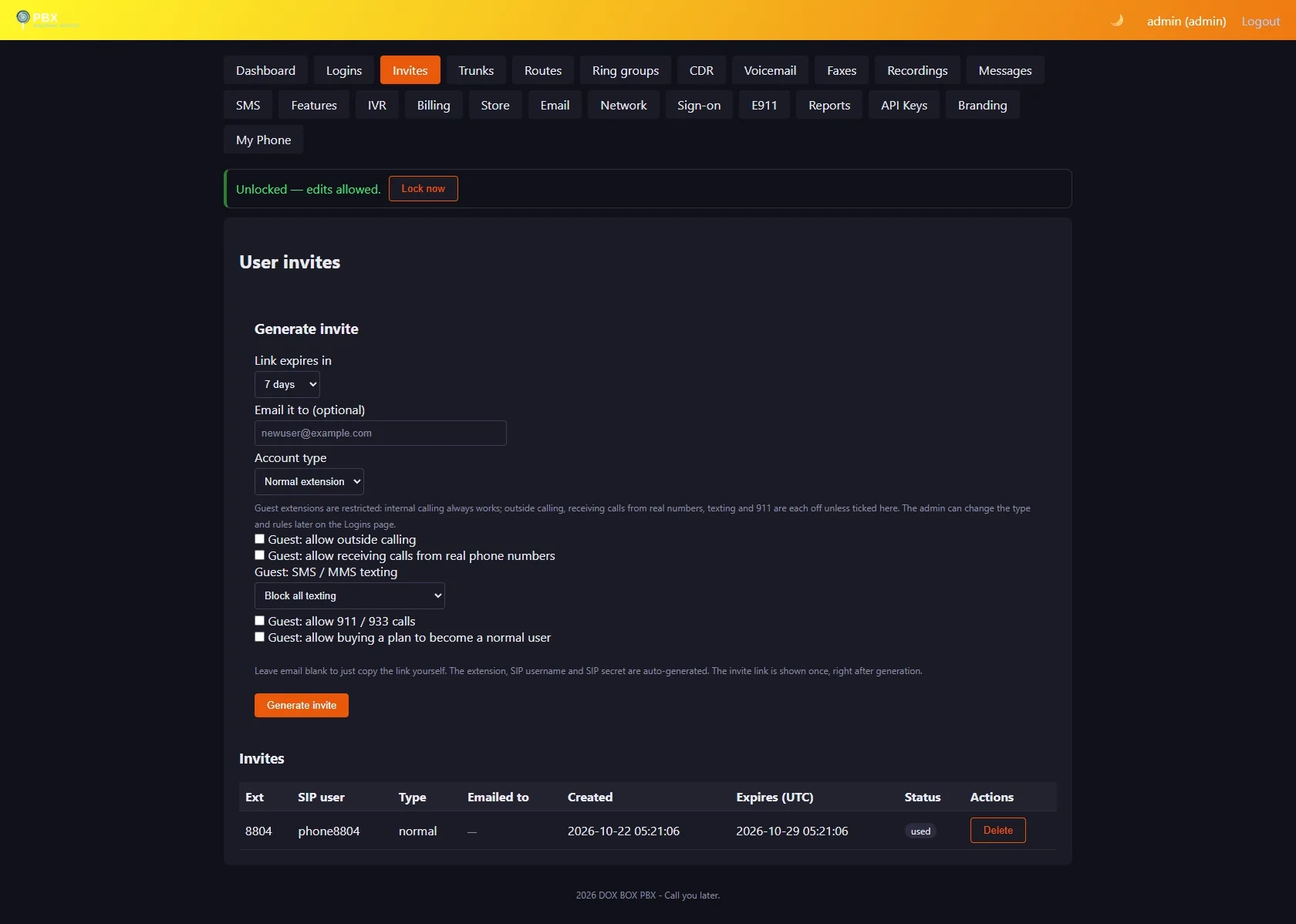
Onboard users without handing out passwords: Invites → Generate invite picks the next free extension, auto-generates the SIP username/secret, and gives you a single-use link — shown once, copy it or email it to the user. The link expires after 1–30 days (your choice), dies after one use, and can be revoked. The recipient picks their own login password plus display name and voicemail email; the login is created on the spot. Tokens are 256-bit and stored hashed.
The generator also picks the account type — normal or guest — and, for guests, which guest rules start switched on. The redeemed account is created with exactly those settings.
Guest extensions new
A guest extension is a restricted account type, made for courtesy, lobby and visitor phones. Internal calling always works — other extensions, feature codes, and ring groups dialed from inside. Everything that reaches outside the PBX is off unless the admin turns that one thing on for that guest:
- Outside calling — the guest may dial real phone numbers through a trunk. Their plan / outside minutes still apply on top: the guest rules are caps, never grants.
- Receiving calls from real phone numbers — DID routes and ring groups may ring the guest for outside callers. Off: the guest is skipped in the ring list, exactly as if it weren't a member; if everyone is skipped, the group's normal no-answer path (voicemail / forward) runs.
- SMS / MMS texting — a dropdown with four scopes, applied in both directions: Both external and internal (real phone numbers and other extensions), External only (real numbers; no extension-to-extension texts), Internal only (extension-to-extension; no real numbers), or Block all. Sends outside the scope are refused everywhere (My Phone, the app, softphones, the API), and inbound texts outside it are dropped before they're stored.
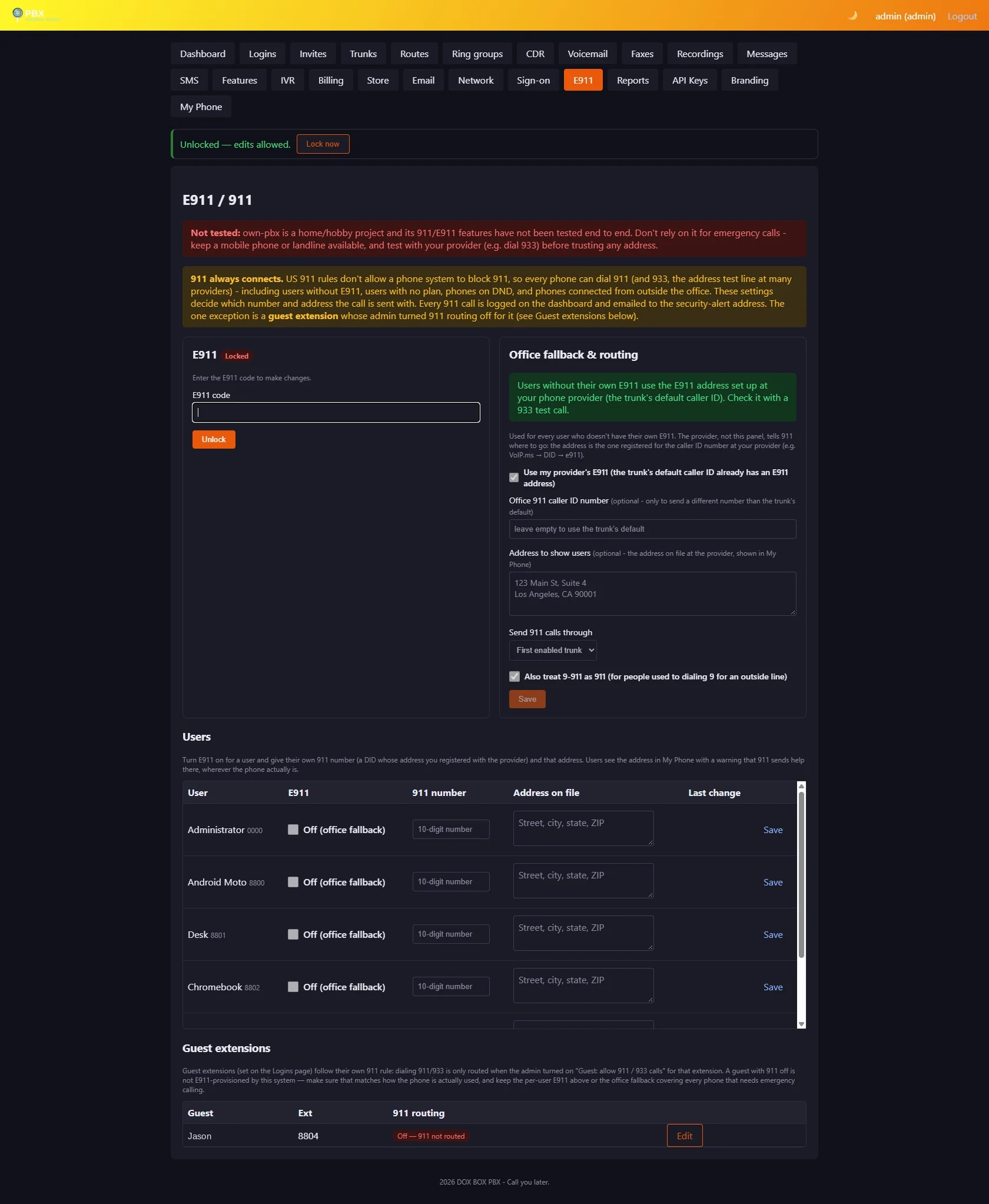
- 911 / 933 calls — off: dialing 911 or 933 from that guest extension is not routed; the caller hears the standard cannot-complete announcement and the attempt is written to the PBX log. This is an explicit per-extension admin decision for guest phones that are not E911-provisioned — normal extensions can never be blocked from 911. The E911 page lists every guest and its 911 state.
- Buying a plan to become a normal user — off (the default): the guest can't buy plans at all, and their Plans page tells them the admin doesn't allow this account to upgrade plans without contacting support first. On: the guest may buy a plan, and when a paid plan's subscription activates, the account converts to a normal extension and every guest rule stops applying (the conversion is audit-logged). Free plans never convert an account — guests never upgrade on their own.
Set the type and rules when creating a login or generating an invite, or convert any existing account either way under Logins → Edit → Account type. Every type or rule change is written to the audit log (shown in Dashboard → Activity), and the E911 changes are flagged there like other E911 events.
Trunks
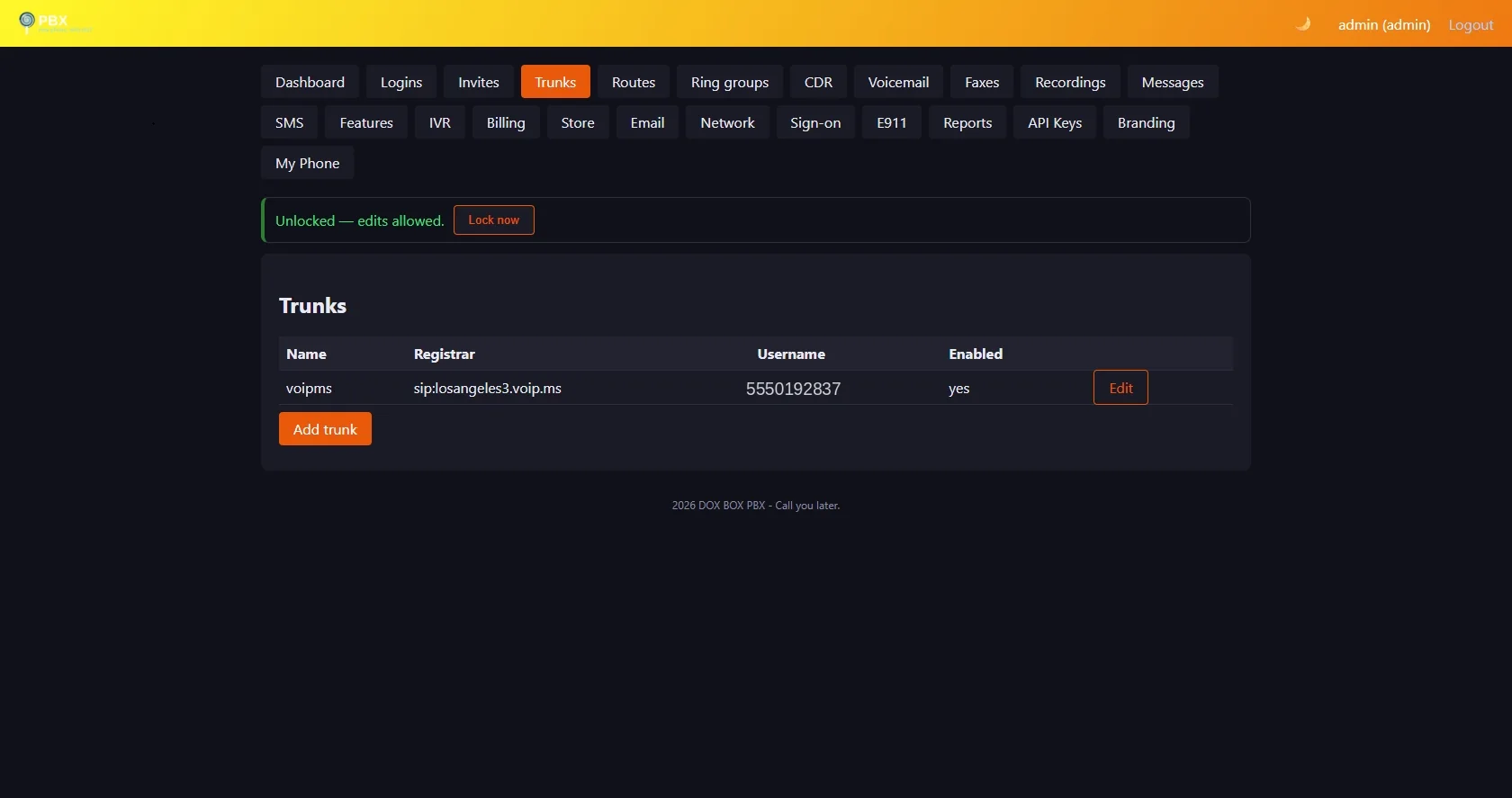
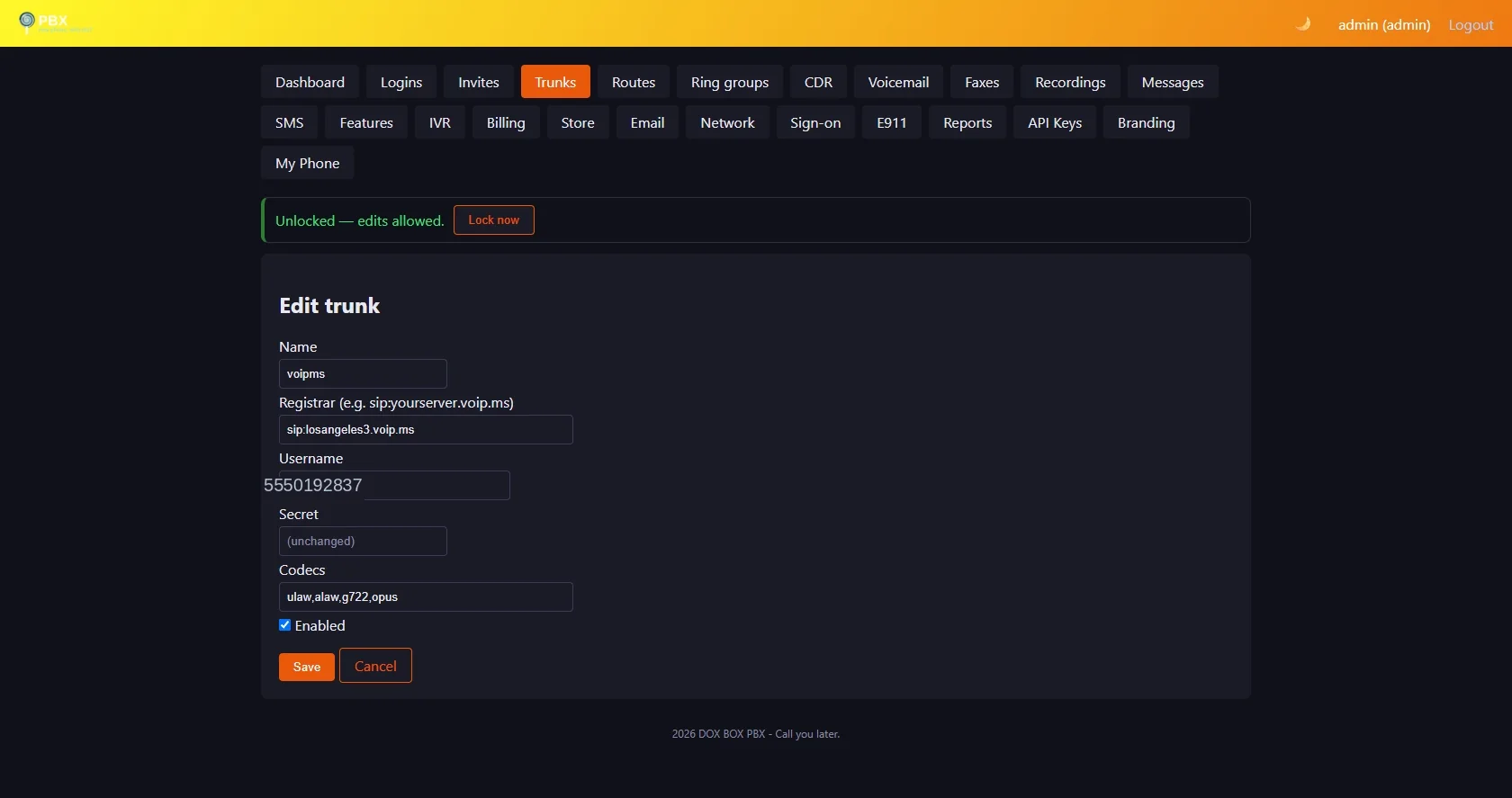
Your SIP provider(s): registrar, username, secret and codecs.
Routes
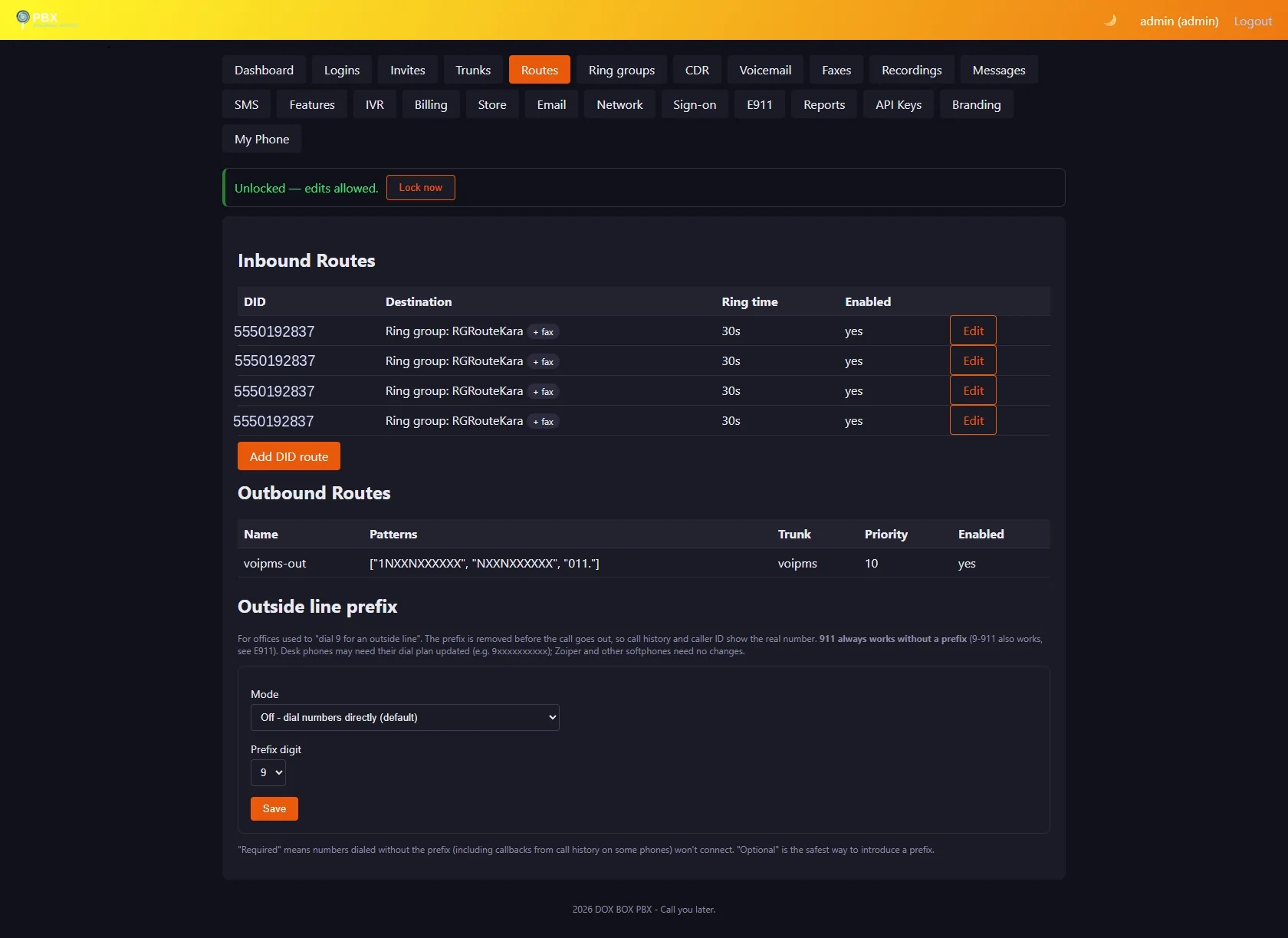
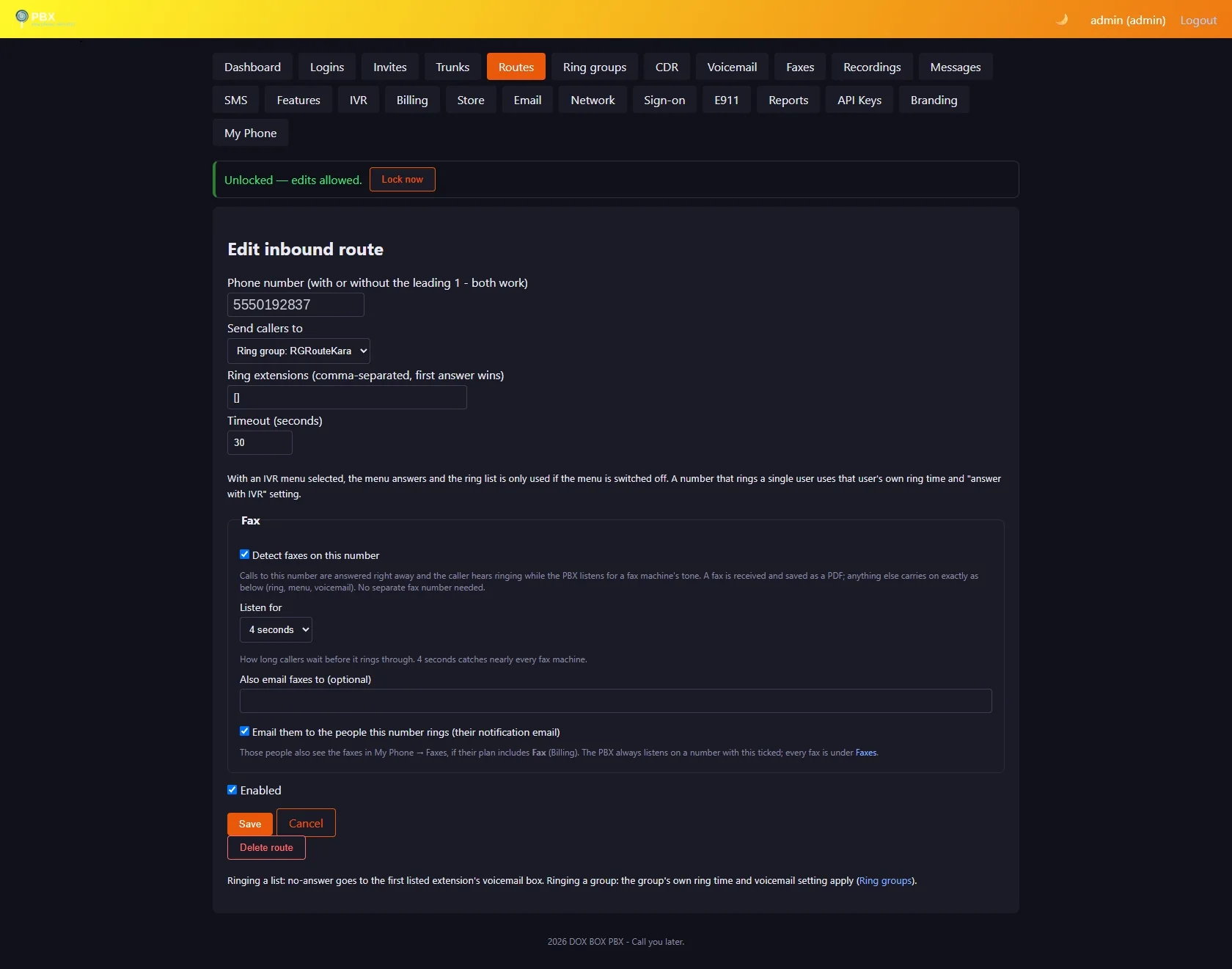
- Inbound: phone number → ring group, IVR menu or list of extensions. One route covers the number with or without the leading 1.
- Outbound: number patterns → trunk.
- Time condition (per number): business hours one way, after hours another — see Call flow.
- Detect faxes (per number): receive faxes on an ordinary number — see Faxes.
- Outside line prefix: Off (default), Optional (9 + number and the number alone both work) or Required, with digit 9 or 8. The prefix is stripped before dialing; 911 never needs it.
Faxes new
Receive and send faxes on the phone numbers you already have — no separate fax number. Works with an ordinary voip.ms DID.
Receiving
- Routes → Edit a number → tick Detect faxes on this number. The PBX always listens on a number with this ticked.
- Calls to it are answered at once; the caller hears ringing while the PBX listens for a fax machine's tone for 3–8 seconds (4 by default). A fax is received and saved as a PDF; anything else rings through exactly as before (phones, menu, cells, voicemail).
- Faxes go at 9600 baud with error correction, which holds up far better over internet phone lines. If a fax still breaks off at the very end, the pages that arrived are kept, marked May be incomplete.
| Where faxes go | |
|---|---|
| The PDF, to the addresses you list for the number (Also email faxes to) and, if ticked, to the people the number rings (their notification email). | |
| My Phone → Faxes and the app | For the people the number rings (a ring group: every member) whose plan includes Fax, with a new-fax count and a notification in the app. |
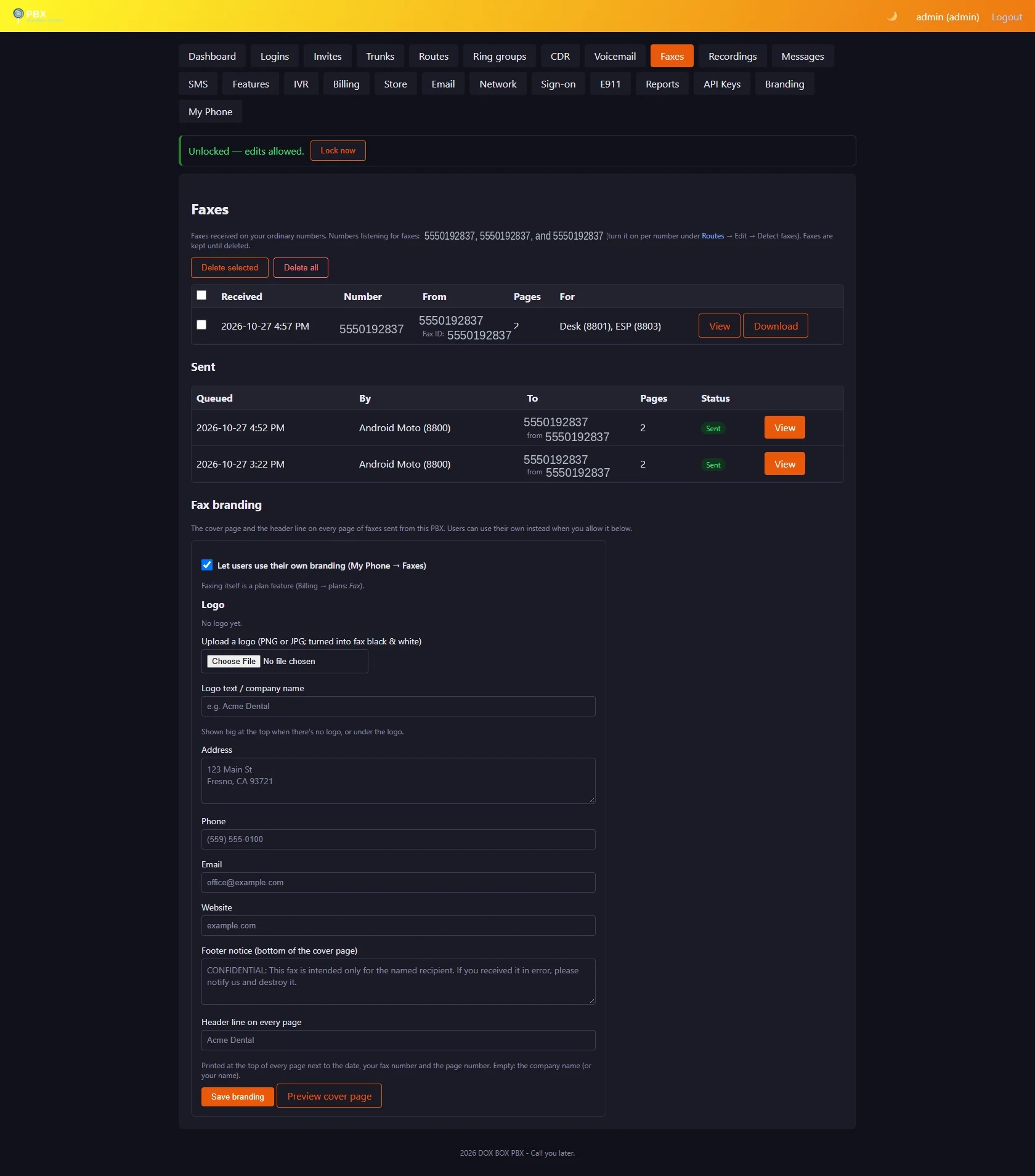
| Admin → Faxes | Every fax on every number, who it was for, failed ones with the reason, and every sent fax. Kept until deleted. |
Asterisk needs fax support (spandsp). New installs include it. On a PBX installed before, run pbx-update --with-fax once when the phones are quiet: it compiles Asterisk with fax (about 10–20 minutes, calls keep working), then restarts it as soon as no call is in progress.
Sending
Users send from My Phone → Faxes → Send a fax or the app's Faxes tab:
| Step | |
|---|---|
| Document | A PDF or a photo (JPG, PNG), up to 20 MB and 50 pages. |
| Fax number | A 10-digit US/Canada number, sent over your normal outbound route. |
| Send from | One of the user's numbers (numbers whose route rings them; admins can use any). The other side sees it as the caller ID and on the header line of every page. |
| Cover page | Optional first page with To, From, Subject, page count and a message, using the fax branding. |
- Faxes go out one at a time. A busy line or no answer is tried again: 3 attempts, 3 minutes apart. The Sent list shows waiting / sending / will retry / sent / failed, and the sender is emailed the result.
- Answered time counts toward the plan's outside minutes, like a call.
Fax in plans
Under Billing, each plan has a Fax checkbox (send and receive) and Faxes per month (a number, Unlimited, or 0 for receive only). The same two settings are in Defaults (no plan) and per-user exceptions. New accounts have Fax off. Admins can always fax.
- Without Fax a user has no Faxes tab and can't send. Faxes to their numbers are still caught, and land in Admin → Faxes and the number's email addresses.
- Receiving is never limited; failed or cancelled faxes don't count toward the monthly number. Users see faxes sent and left in Plan & usage (app and web).
Fax branding
Faxes → Fax branding sets what the cover page and the top line of every page show:
| Field | |
|---|---|
| Logo | PNG or JPG, trimmed and turned into crisp fax black & white. |
| Logo text / company | Big at the top when there's no logo, otherwise under it. |
| Address, phone, email, website | Under the company name. |
| Footer notice | Small print at the bottom, e.g. a confidentiality notice. |
| Header line | Printed at the top of every page with the date, the sending number and the page number. |
Preview cover page opens a PDF of exactly what's sent. Tick Let users use their own branding and each user can set theirs under My Phone → Faxes → My fax branding. With nothing set, the cover page is plain.
Ring groups
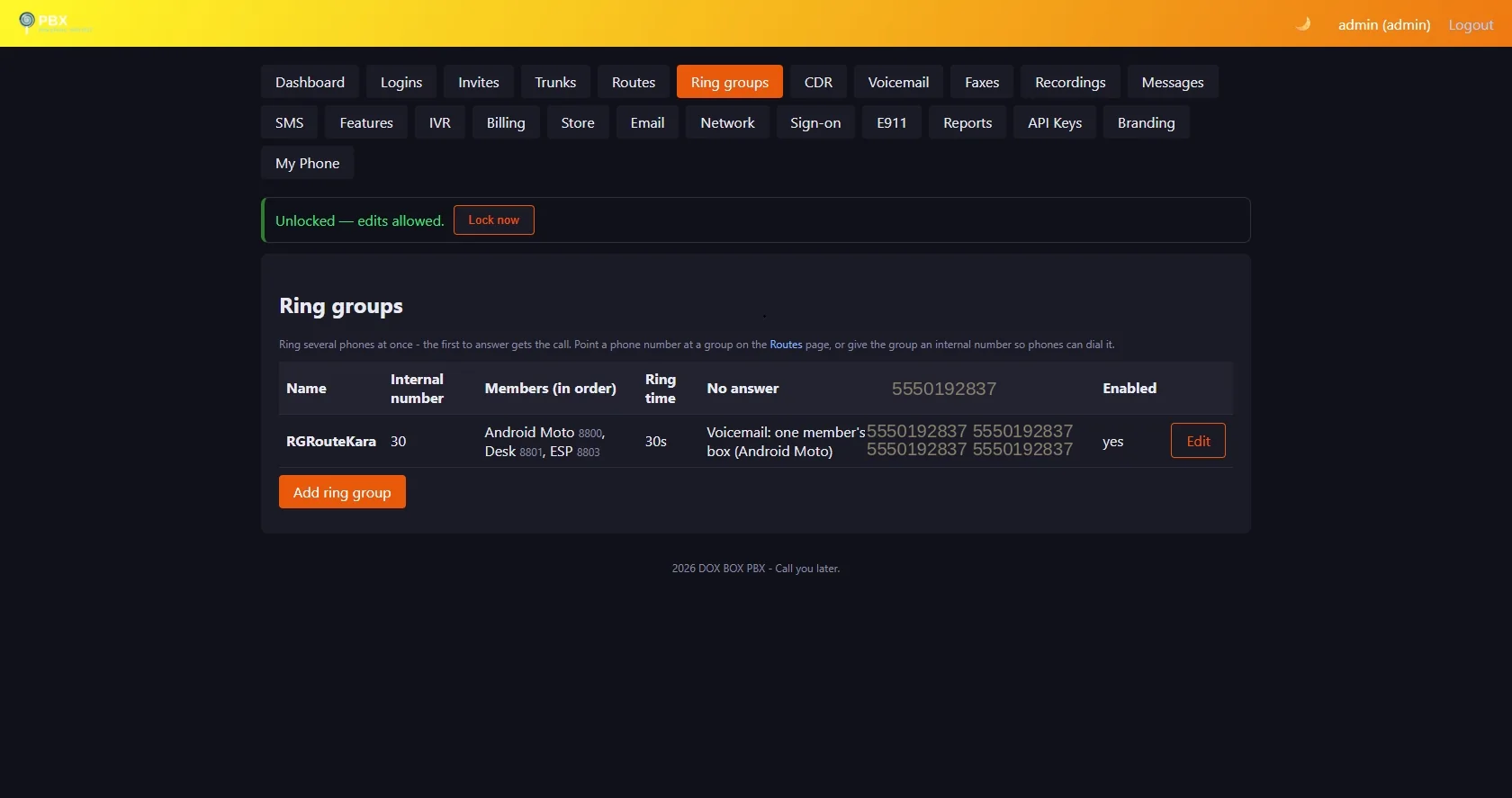
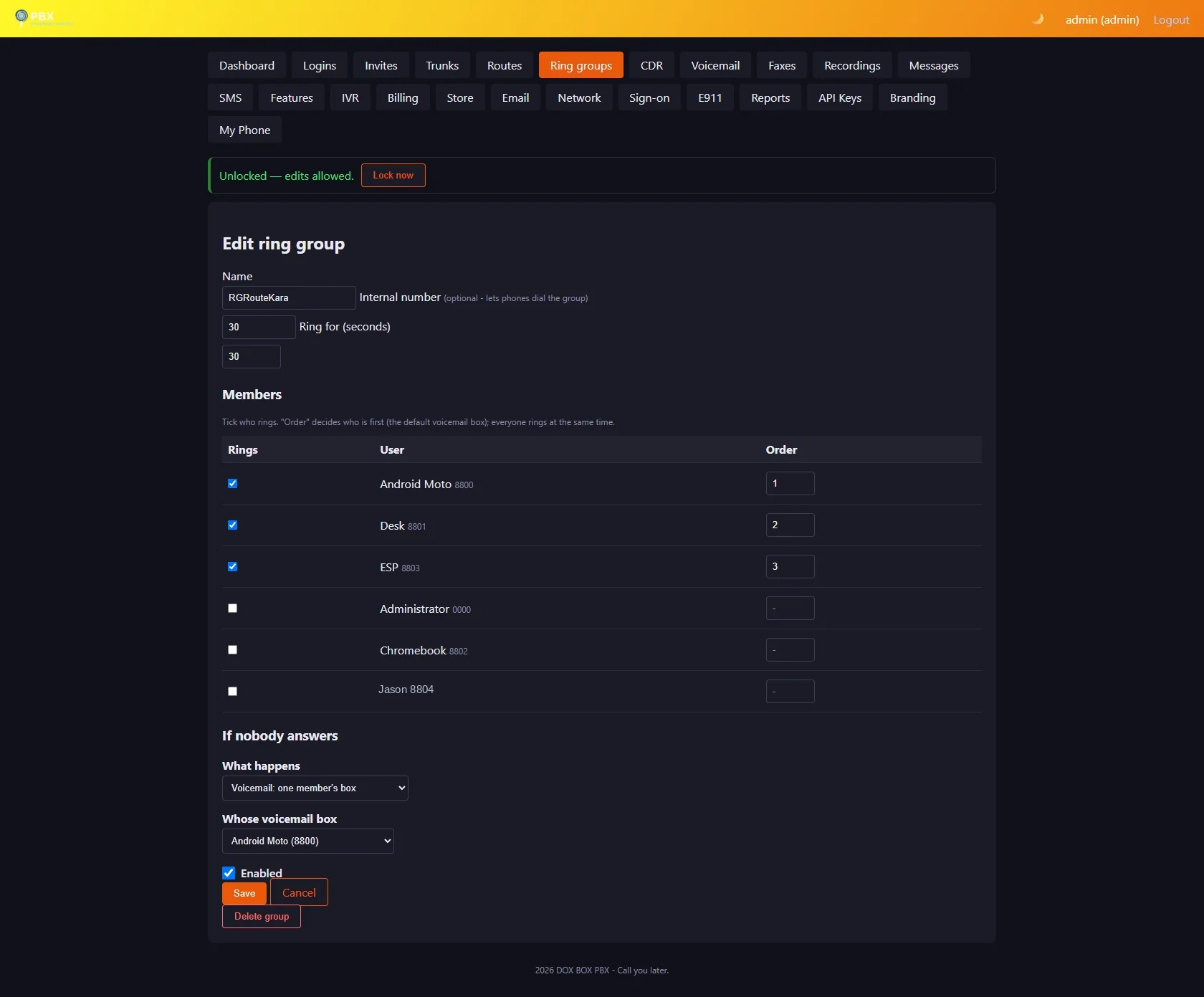
- Name and an optional internal number phones can dial.
- Members, all ringing at once. Their order sets the "first member".
- Ring time, then if nobody answers: one member's voicemail · a copy for every member · another extension, ring group, IVR menu, or an outside number (uses the first member's minutes) · hang up.
Calls to the group's internal number aren't billed.
Members' cells: a member can choose to have their own cell ring too when a call rings the group (or any number routed to them) (My Phone → Settings → Ring my cell too). The cell rings after their chosen delay, must press 1 to accept (so a cell voicemail can't grab the call), and uses that member's outside minutes over your outbound route. Nothing to set on this page.
Call flow new
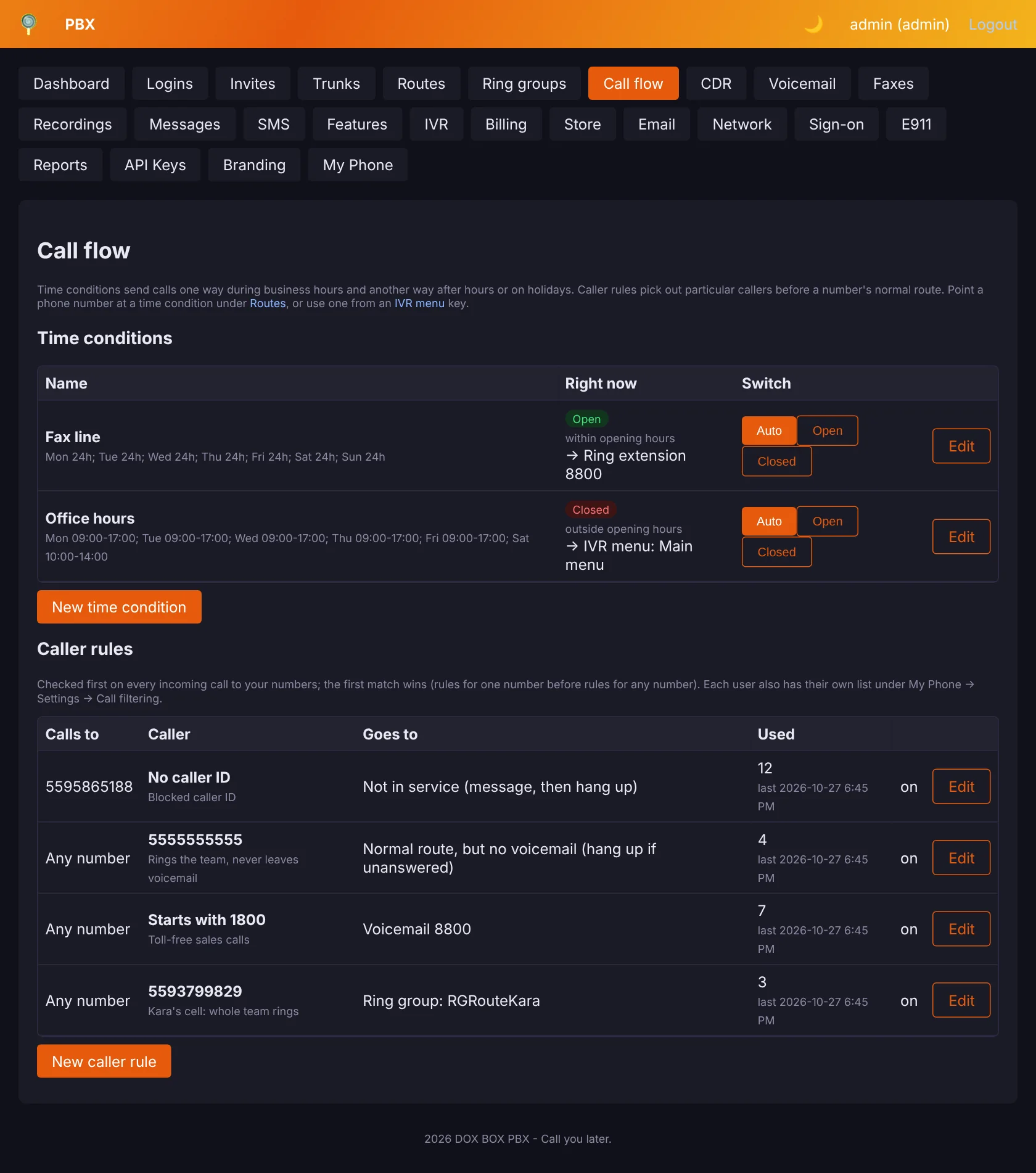
Decide where calls go by the time of day and by who is calling.
Time conditions
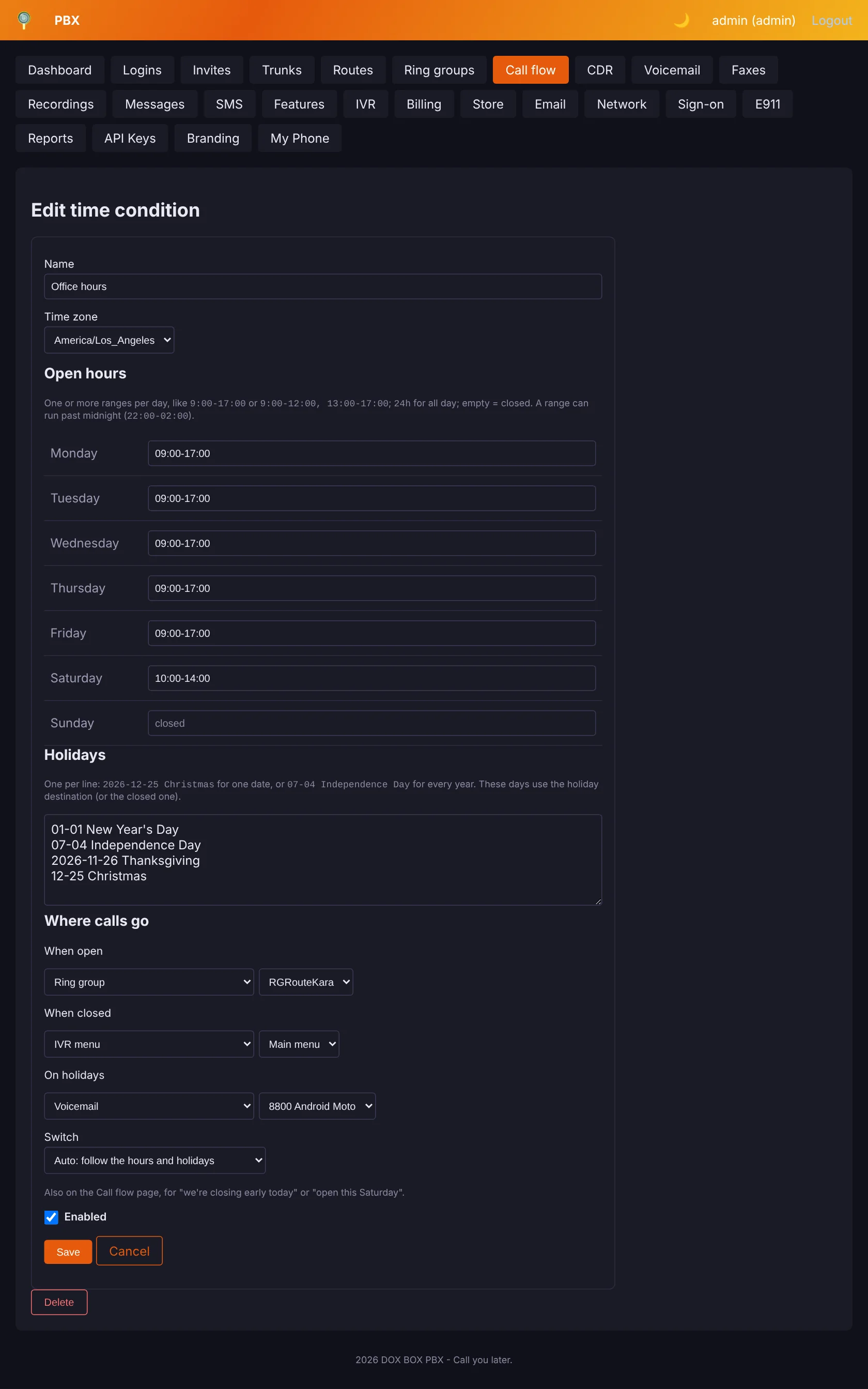
- Open hours per weekday, one or more ranges (
9:00-12:00, 13:00-17:00;24h; a range can run past midnight), in your time zone. - Holidays: one date (
2026-11-26 Thanksgiving) or every year (12-25 Christmas). - Where calls go when open, when closed, and on holidays (or as closed): a ring group, an extension or list of extensions, a voicemail box, an IVR menu, another time condition, “not in service”, or hang up.
- Switch: Auto follows the hours; Open or Closed overrides them (“closing early today”) — one click on the Call flow page, which also shows whether each one is open right now.
- Use one from Routes (a phone number's Send callers to), an IVR key, or a caller rule. After hours a ring group can go straight to voicemail this way.
Caller rules
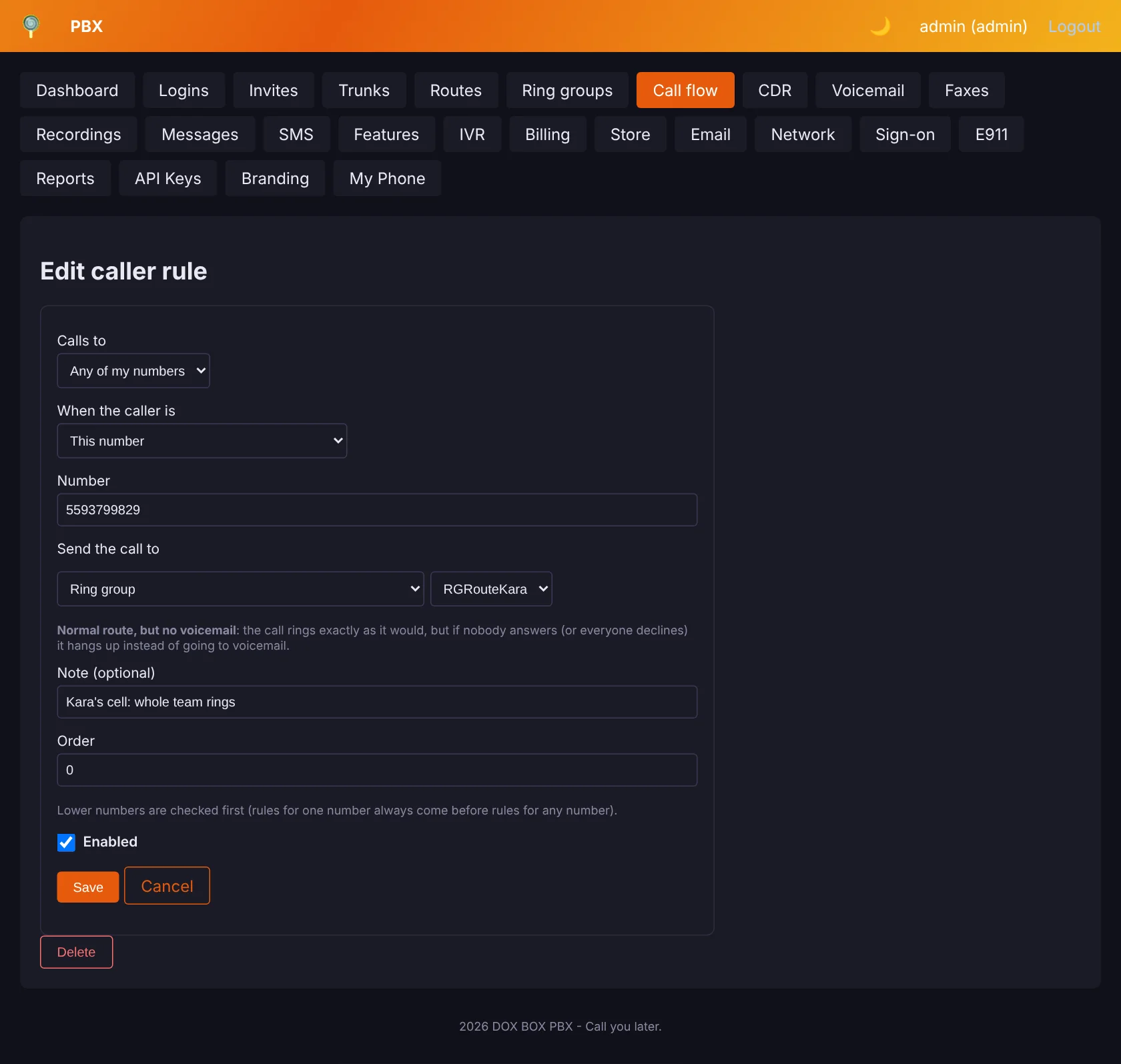
“If the caller ID matches, do this”, checked before a number's normal route. The first match wins; rules for one number come before rules for any number, and each shows how often it was used.
| Caller | |
|---|---|
| This number | One caller, e.g. (555) 555-5555 |
| Numbers starting with | An area code or prefix, e.g. 559 or 1800 |
| No caller ID | Blocked, private, anonymous or restricted callers |
Send the call to any of the destinations above, or Normal route, but no voicemail: it rings exactly as it would, but if nobody answers (or everyone declines) the call hangs up instead of reaching voicemail.
Users have their own list too, in My Phone → Settings → Call filtering.
IVR
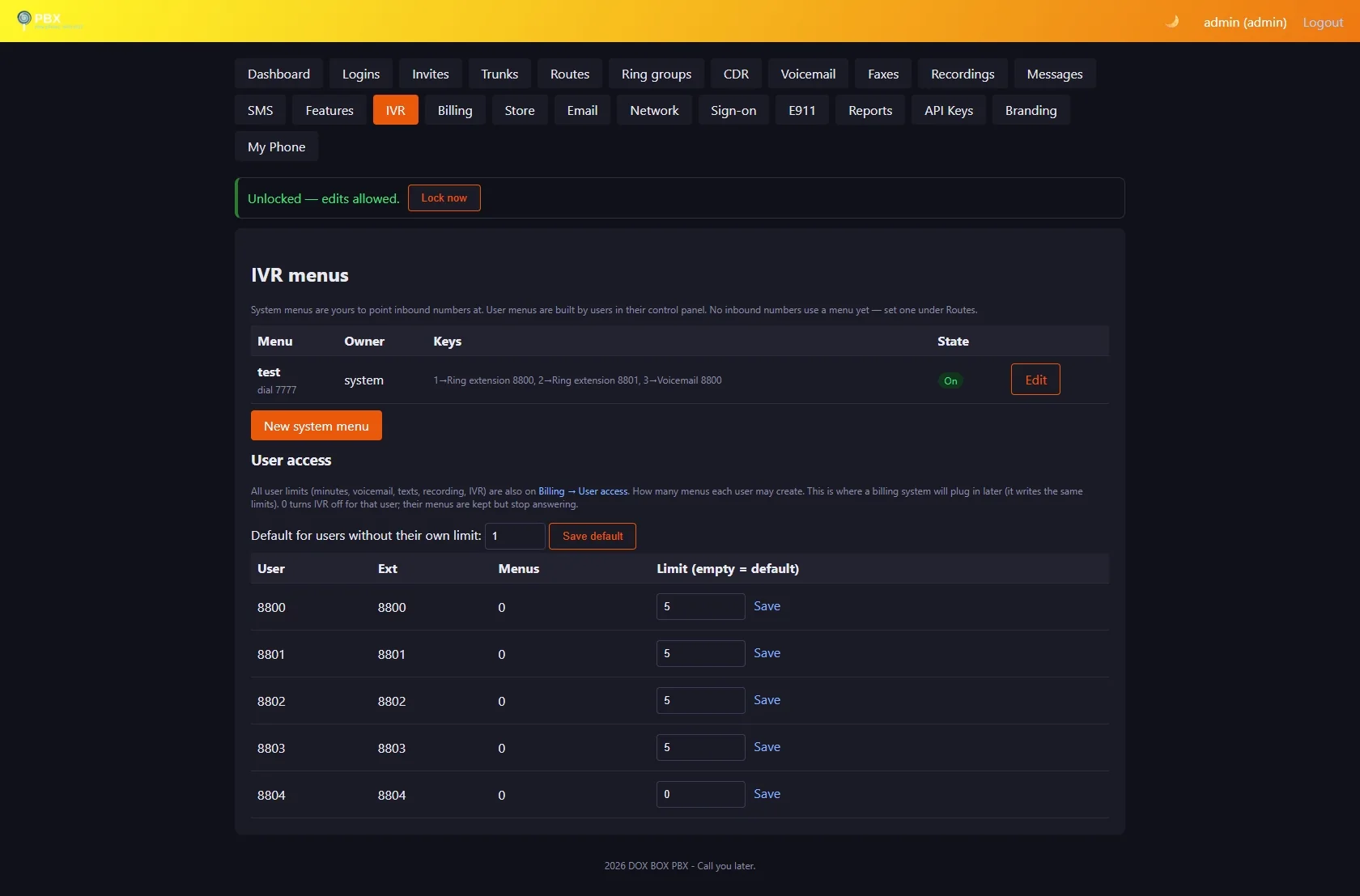
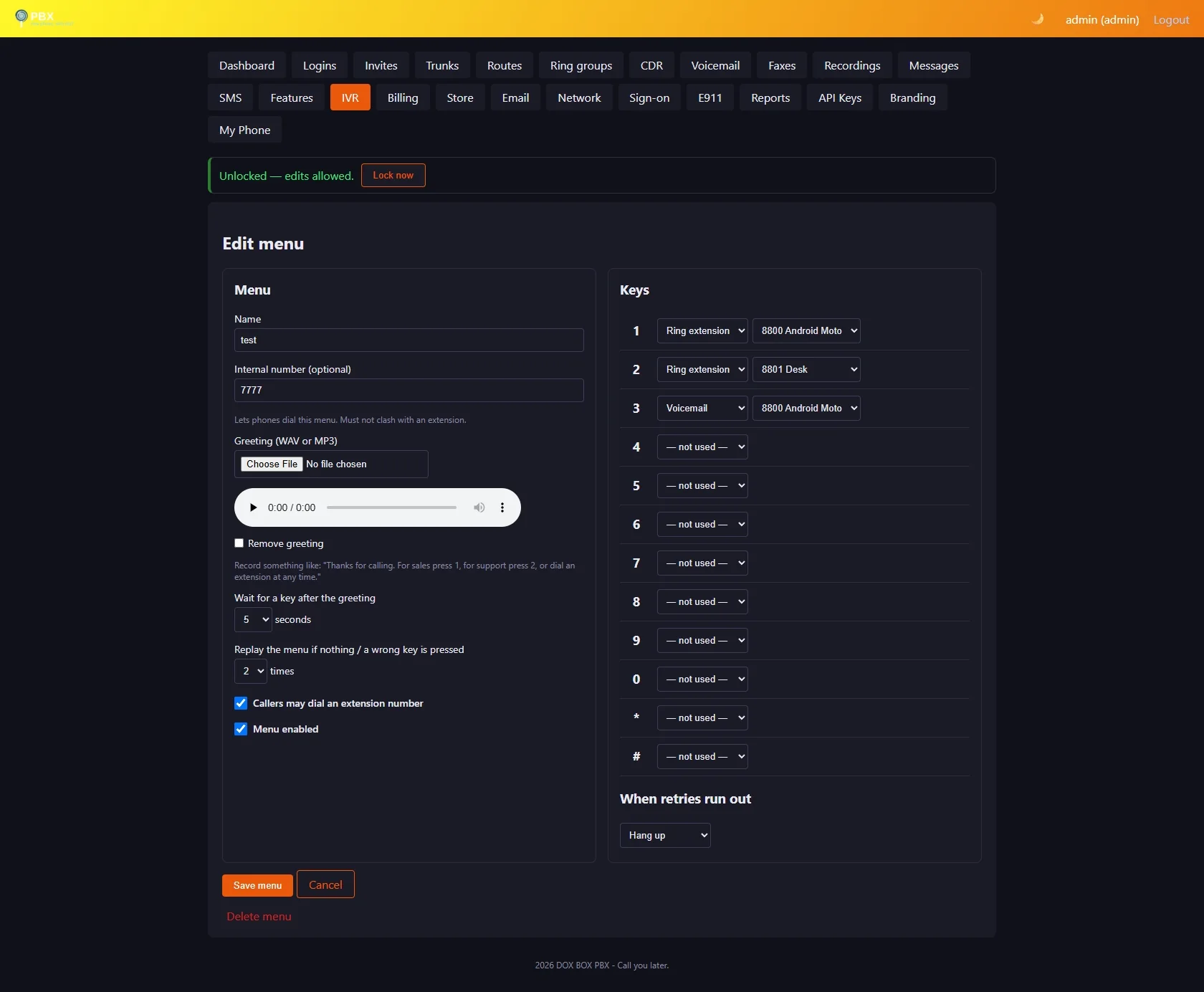
Company menus with a greeting (upload WAV/MP3) and key options: ring an extension, several extensions or a ring group, voicemail, another menu, a time condition, repeat, or hang up. No key and wrong key each have their own number of replays and their own final destination (e.g. no key → the front desk, three wrong keys → hang up). Also controls how many personal menus users may build.
CDR, Voicemail, Recordings, Messages
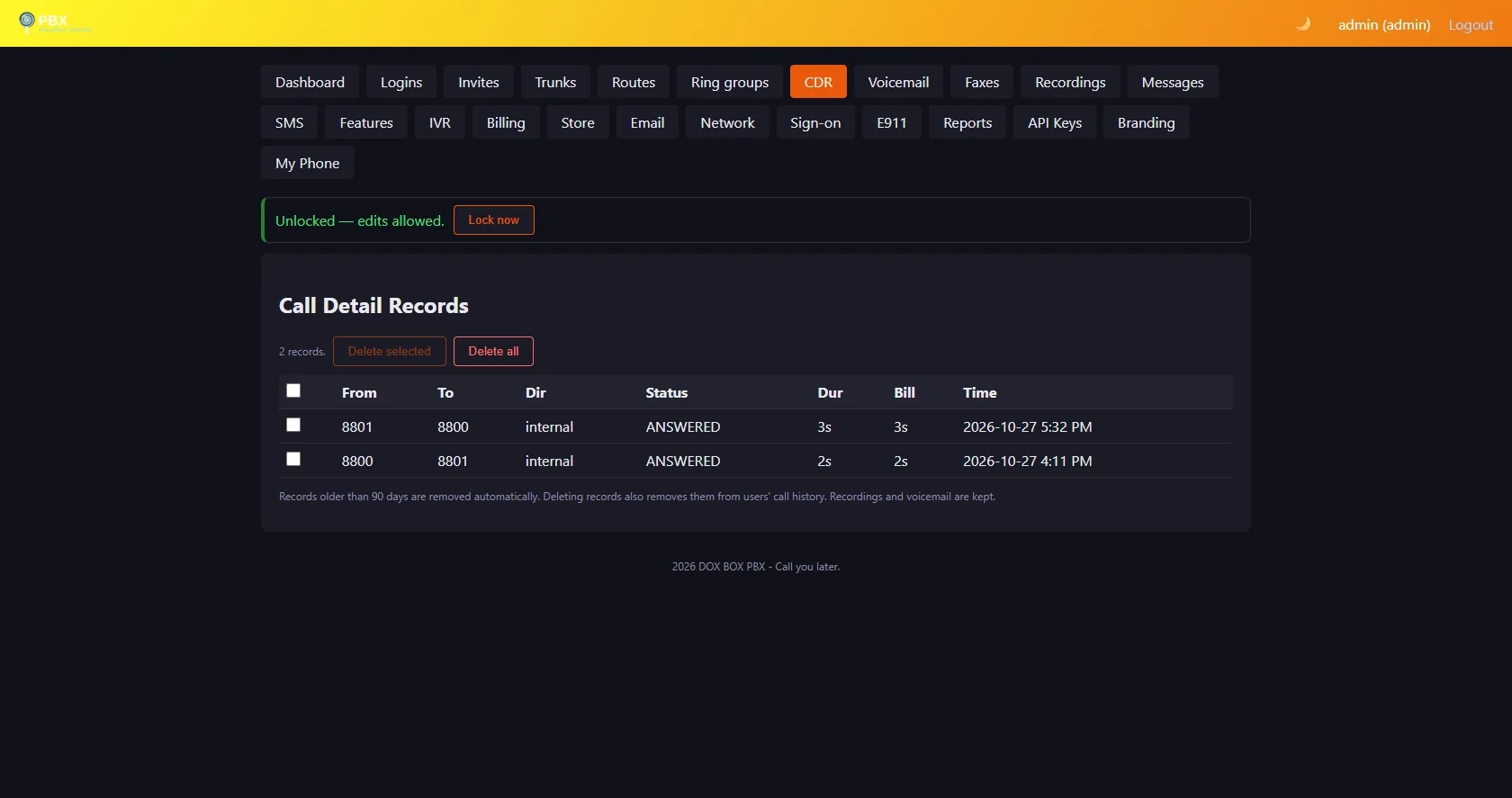
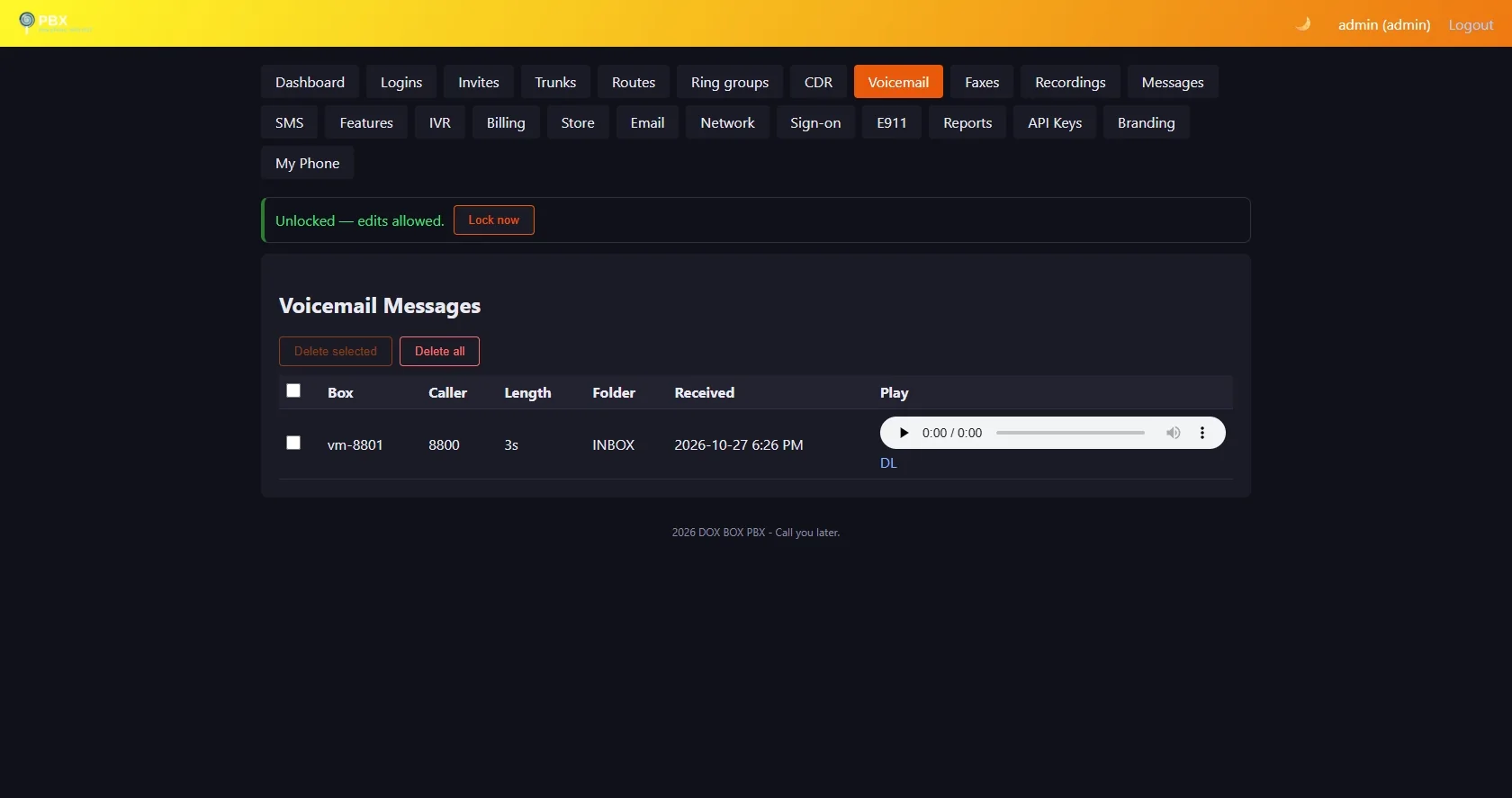
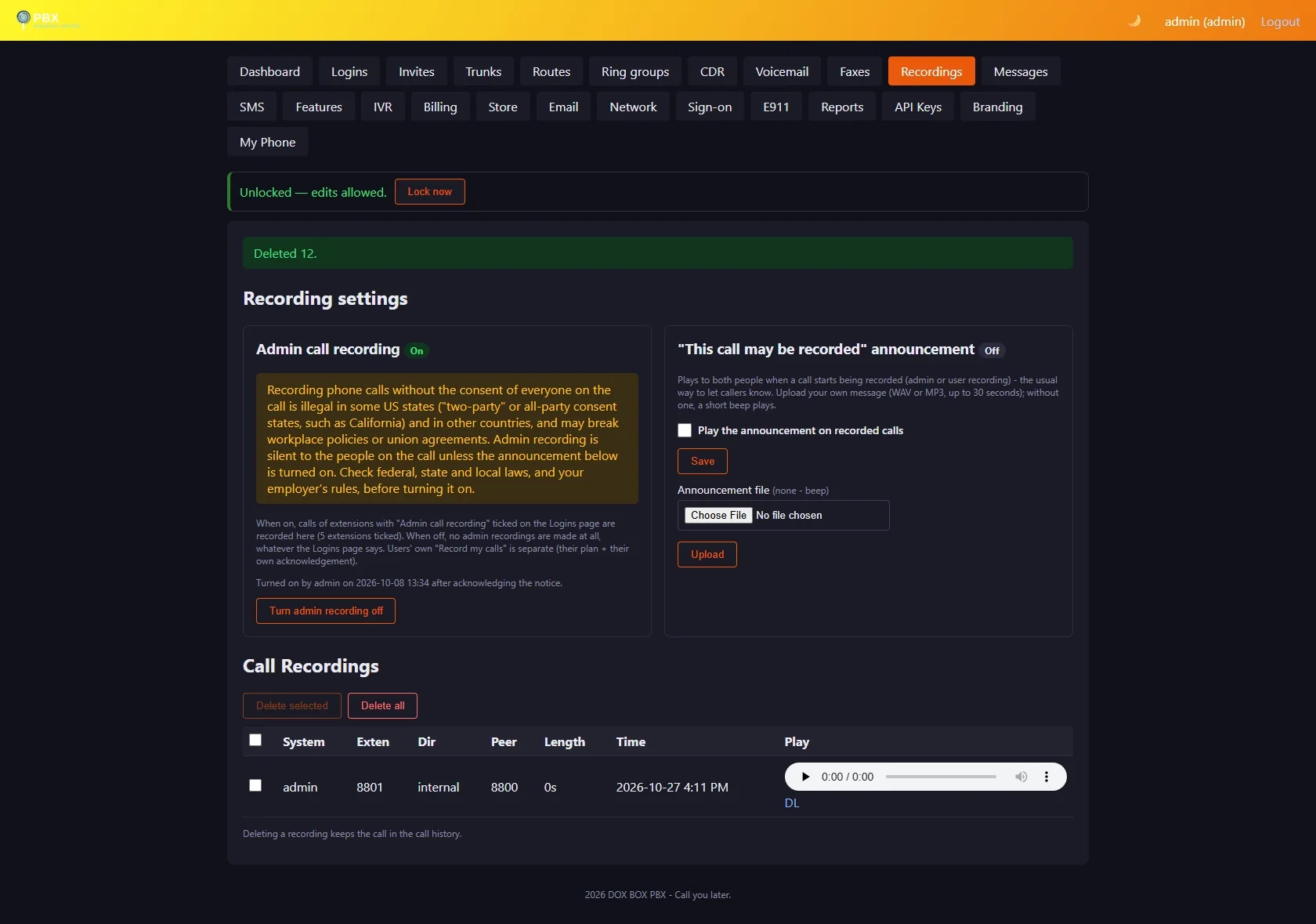
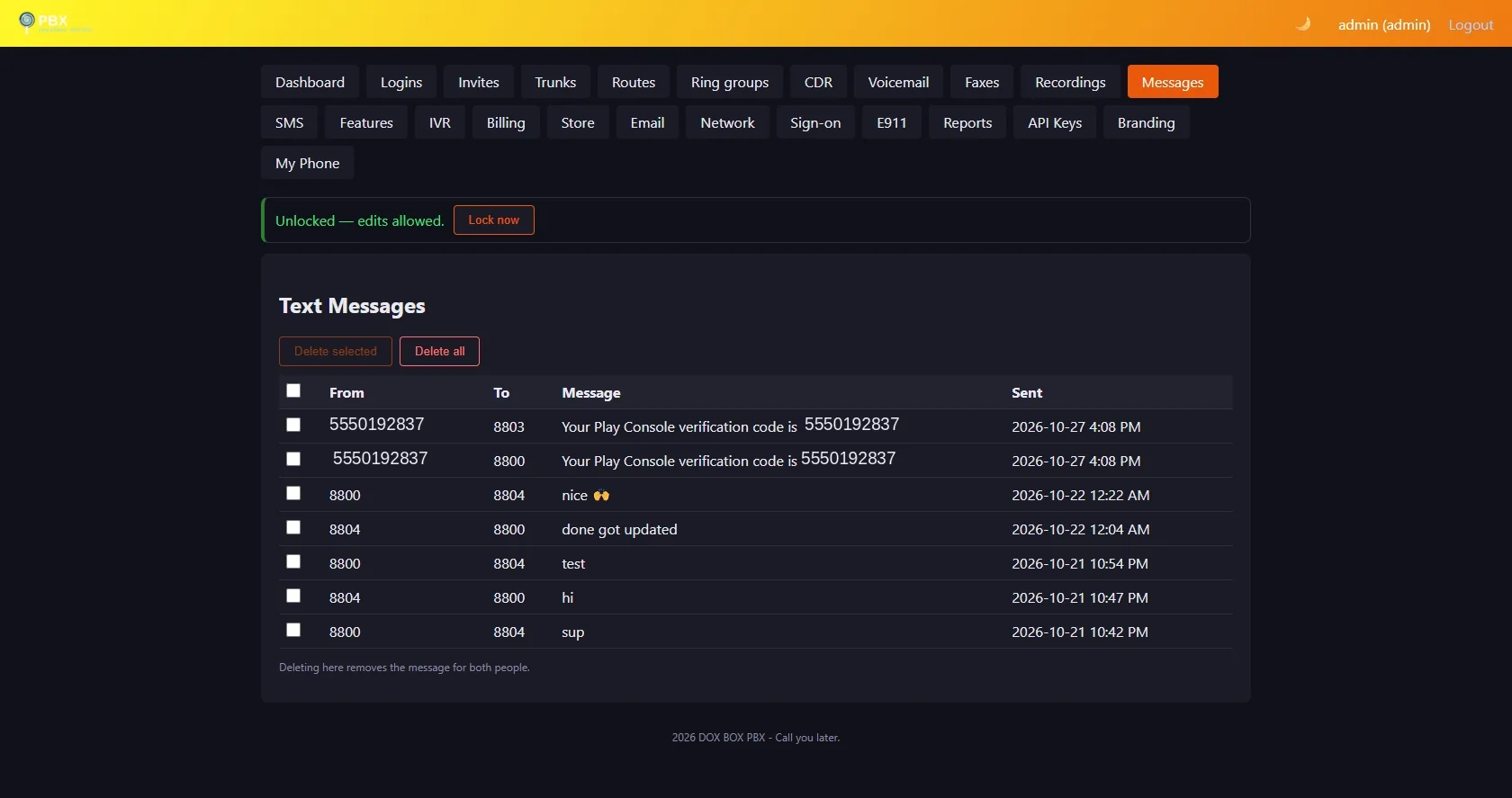
Call records (kept 90 days), every voicemail, every recording (calls in both directions) and every text, with select / delete all. The Recordings page also holds the recording settings (see Recording).
Billing
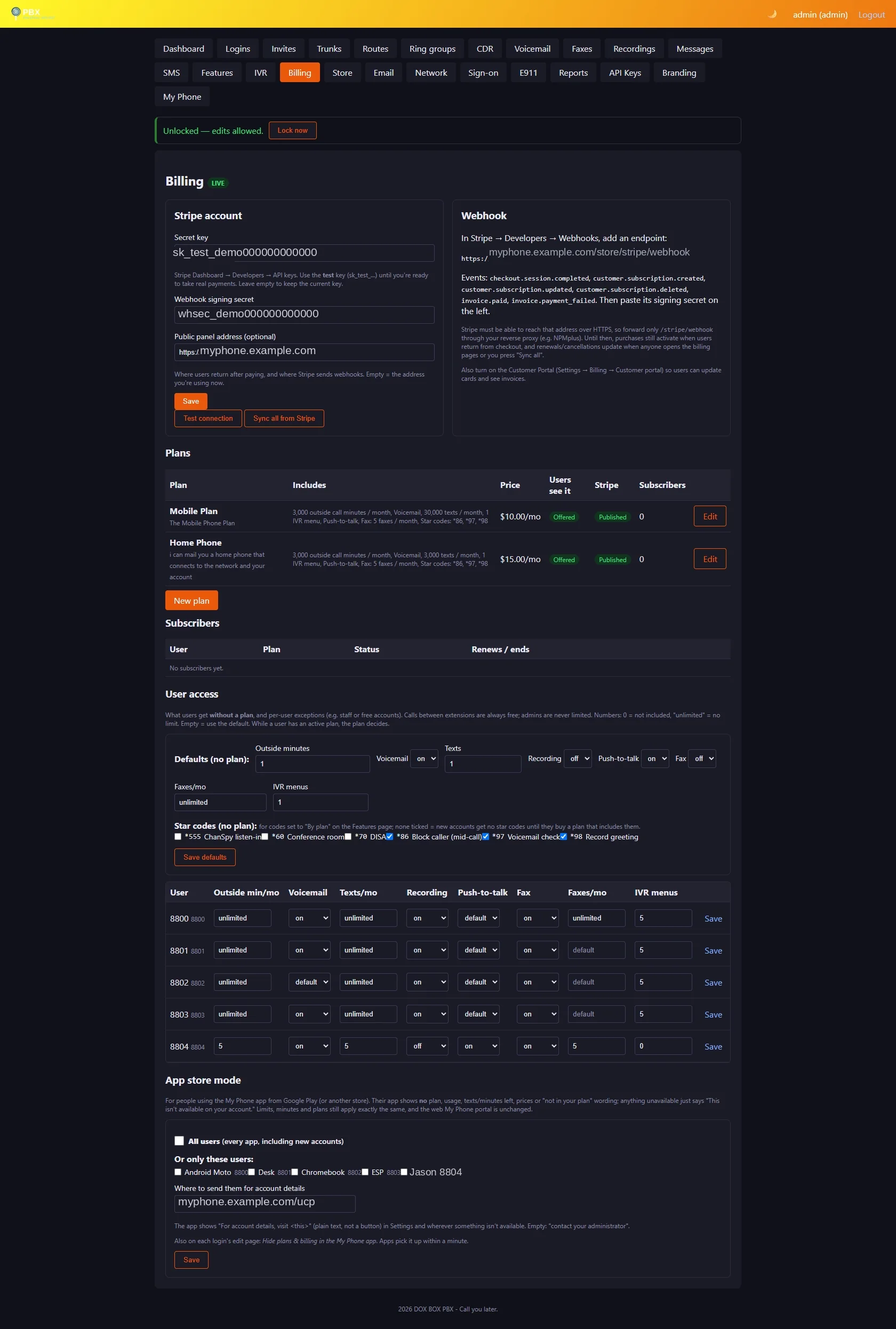
Stripe keys, plans and User access (defaults for users without a plan, including their star codes, plus per-user exceptions). Each plan also lists the star codes included and whether it includes Fax (with faxes per month). See Billing.
App store mode new
For people using the My Phone app from Google Play, so the app never looks like it sells or upgrades anything. Billing → App store mode: tick All users or individual users (also on each login's edit page: Hide plans & billing in the My Phone app), and enter where to send them for account details (e.g. your My Phone address).
- Their app shows no plan, usage, texts or minutes left, prices or “not in your plan”. Settings shows Account: For account details, visit … as plain text, and anything unavailable says “This isn't available on your account.”
- A copy installed from Google Play gets this automatically, whatever the setting.
- The PBX enforces it (usage data isn't sent). Plans and limits still apply.
- Hide in web portal (second column, or All users: also hide in the web portal; also on each login's edit page): the web My Phone portal drops the Billing tab and Your plan this month, and every page swaps plan wording for “isn't available on your account”.
/ucp/billingsends them back to the Overview and billing actions are refused. Use it for the test account you give a Google Play reviewer, so the whole account looks like a plain phone / push-to-talk service with nothing for sale. Guests are listed too; admin pages are unaffected.
Store new
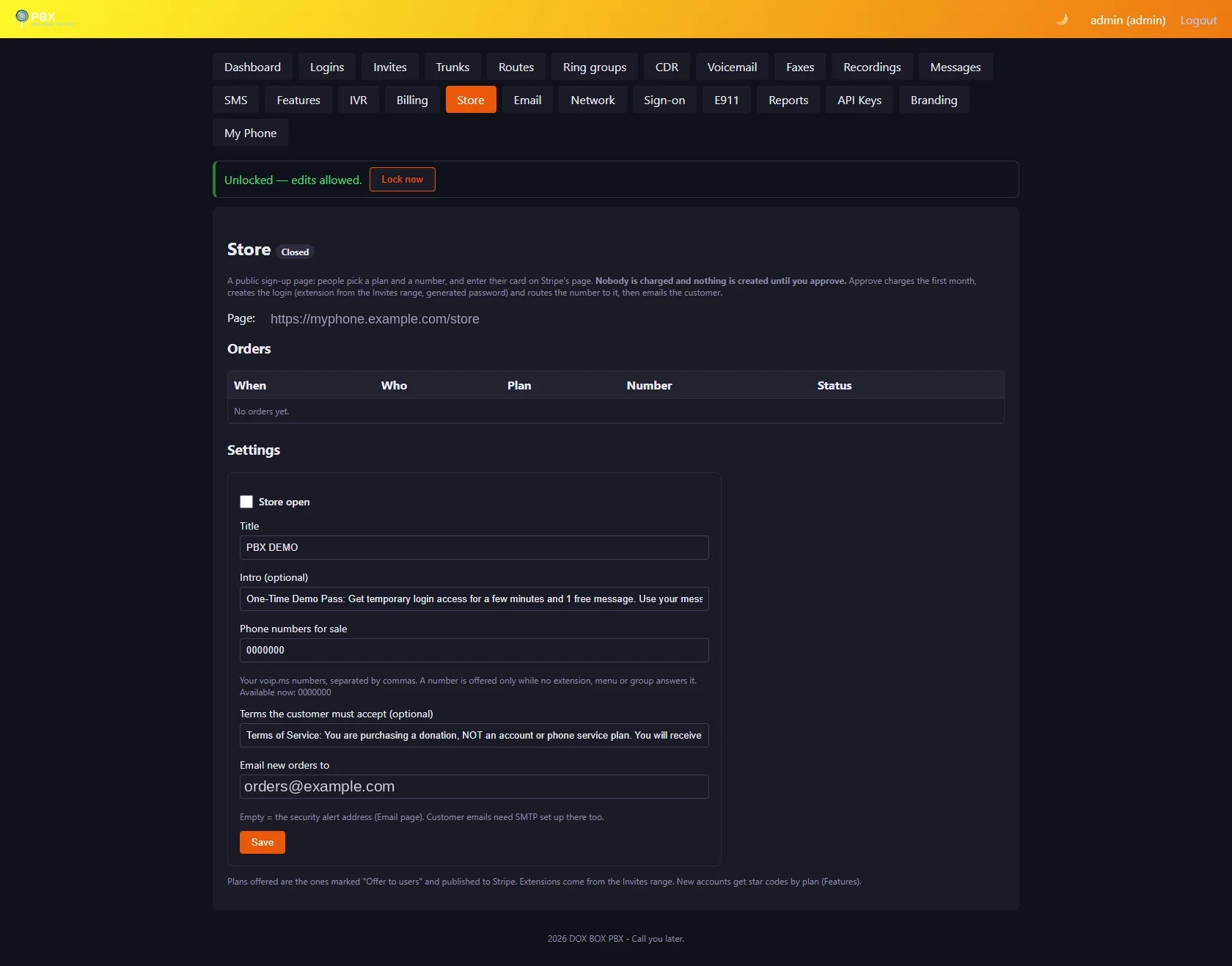
A public sign-up page at https://<your panel>/store. New customers pick a plan (and, optionally, a phone number you list for sale), then enter their card on Stripe's own checkout page. Nobody is charged and nothing is created until you approve.
| Step | What happens |
|---|---|
| Order | Name, email, plan, number; optional terms to accept. Stripe saves the card without charging. The customer gets “waiting for approval, you haven't been charged”; you get an email. |
| Approve | Charges the first month on the saved card (declined = nothing is created). Then creates the login on the next free extension in the Invites range with a generated password and SIP secret, routes the number's calls and texts to it, switches on the plan (with its star codes), and emails the customer their login. |
| Reject | Closes the order, optionally emailing a reason. The card was never charged. |
Settings: Store open, title, intro, phone numbers for sale (a number is offered only while no extension, menu or group answers it and no live order holds it), terms, and who gets new-order emails (default: the security alert address). Protection: a hidden bot trap, a form that expires, the sign-in rate limits per address, and one waiting order per email. The admin page is office-network only; the public page works through your tunnel. Needs Stripe keys and published plans (Billing) and SMTP (Email).
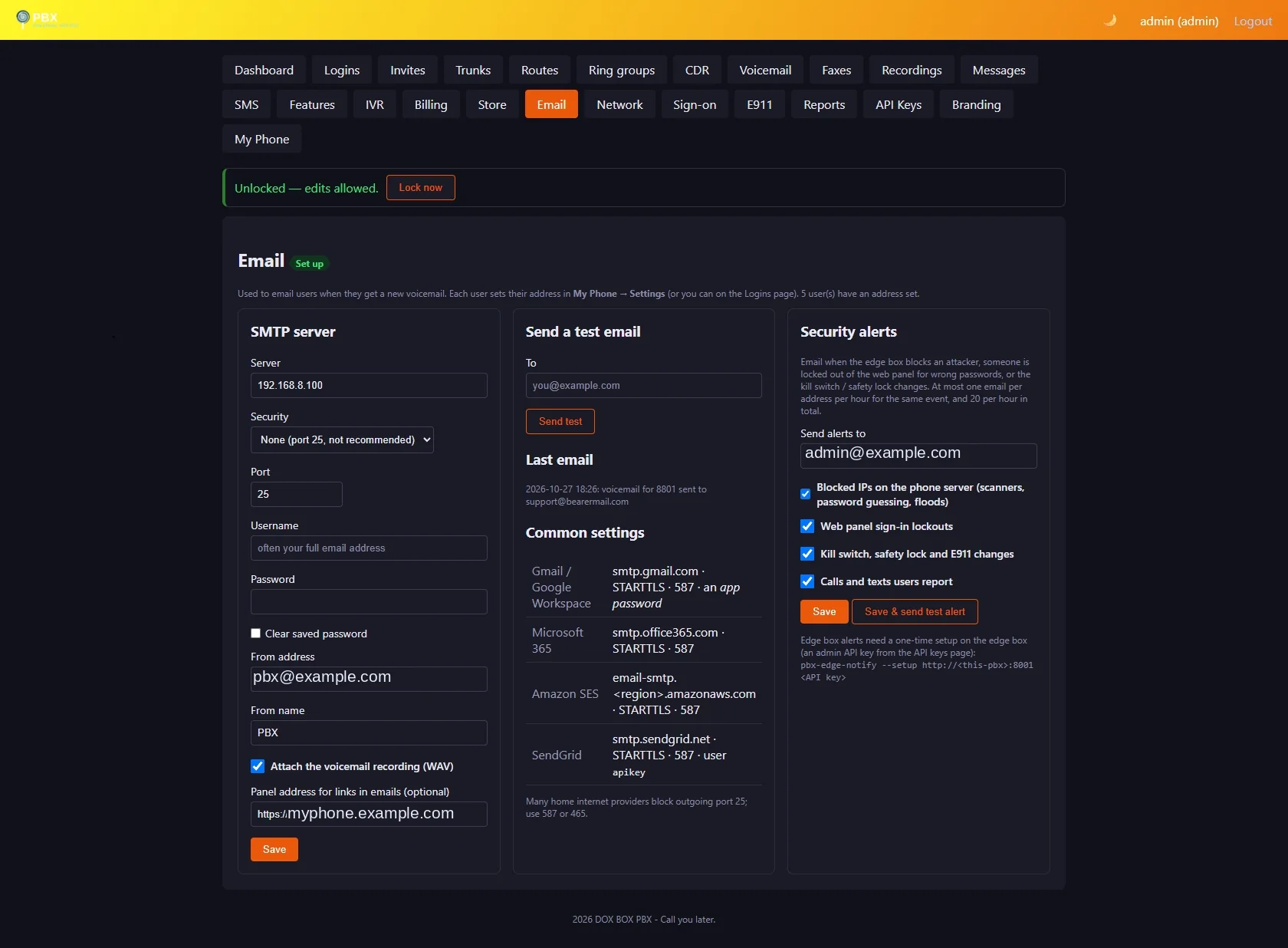
SMTP settings, a test email, the panel address used in email links, and Security alerts: who gets them and for what (blocked IPs, sign-in lockouts, kill switch / lock / E911 / recording changes, user reports). Every 911 call is always emailed.
Network
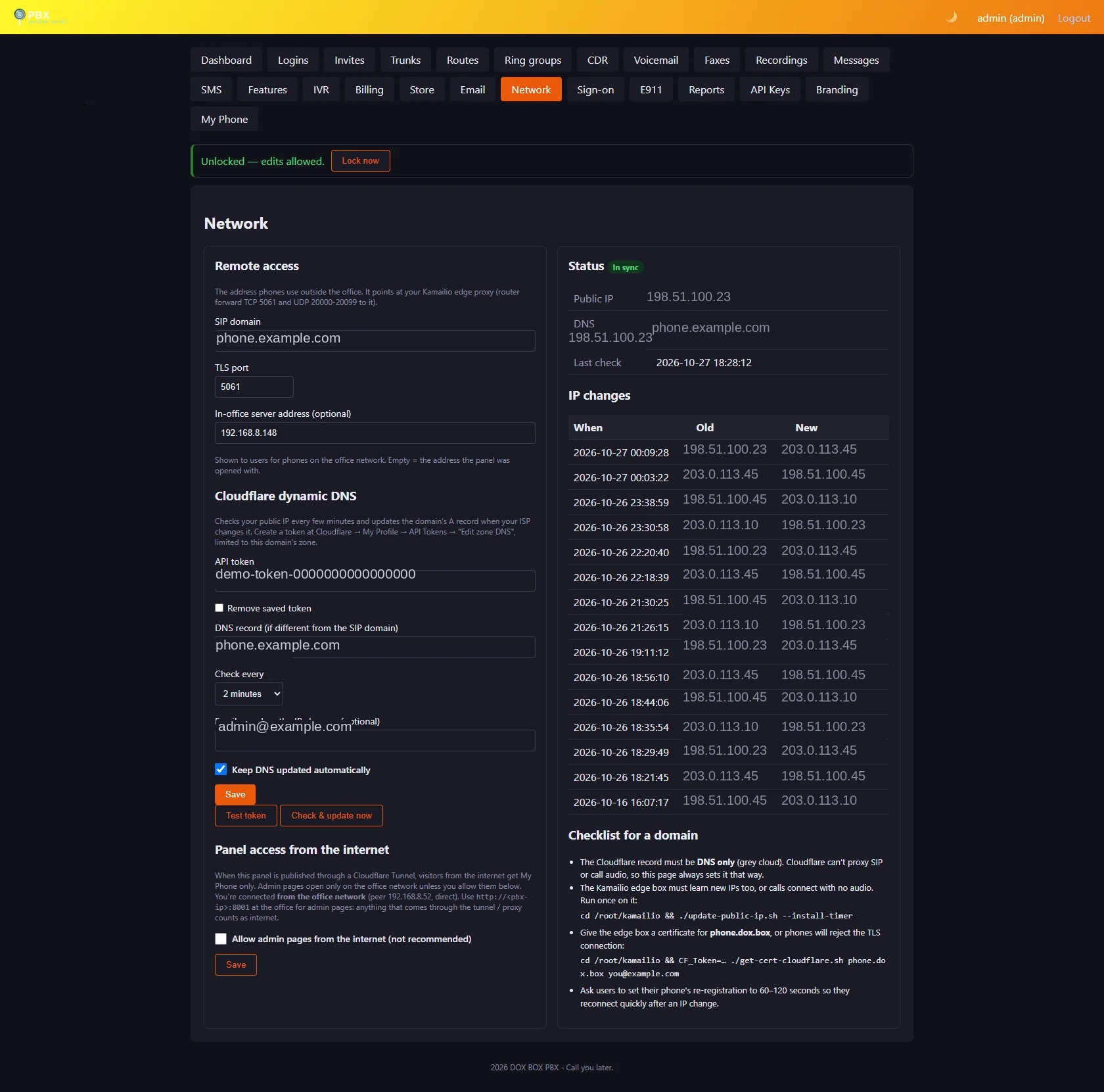
Remote-access domain and TLS port, office server address, Cloudflare dynamic DNS (status, IP history), and panel access from the internet.
Sign-on new
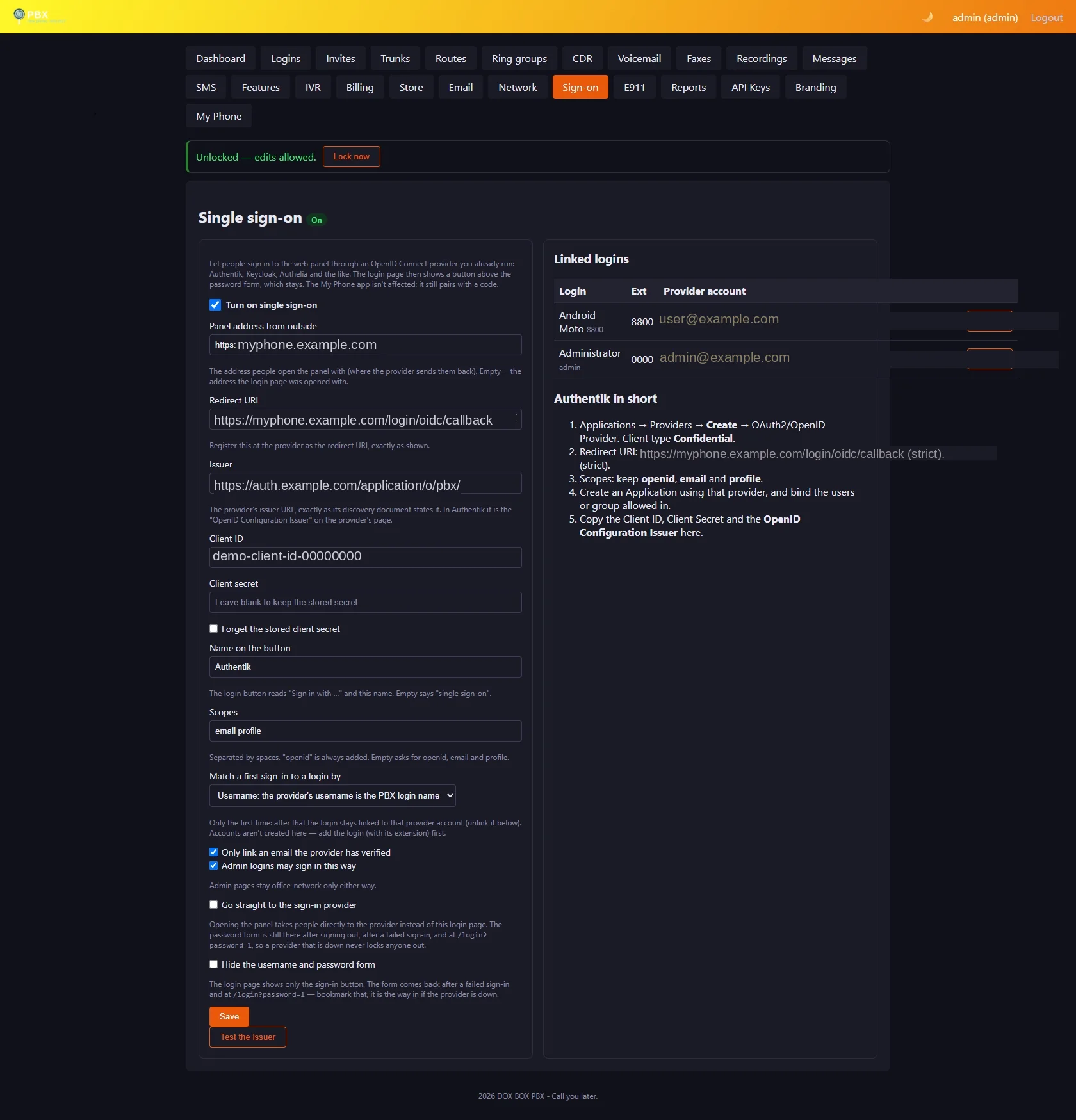
Single sign-on for the web panel through an OpenID Connect provider you already run — Authentik, Keycloak, Authelia and the like. The login page gets a Sign in with … button above the password form. The My Phone app isn't affected: it still pairs with a code.
| Setting | What it does |
|---|---|
| Panel address from outside | The address people open the panel with, e.g. https://myphone.example.com. The page shows the Redirect URI to register at the provider: <address>/login/oidc/callback. |
| Issuer, Client ID, Client secret | From the provider. In Authentik the issuer is the “OpenID Configuration Issuer” on the provider's page. The secret is never shown again; Forget the stored client secret removes it. Test the issuer checks it. |
| Name on the button | “Sign in with” and this name. Empty says “single sign-on”. |
| Scopes | openid is always added. Empty asks for openid, email and profile. |
| Match a first sign-in by | Username (the provider's username is the PBX login name) or Email (the login's notification email). Only the first time: after that the login stays linked to that provider account, even if names change, until you Unlink it. Accounts are never created by sign-on — add the login, with its extension, first. Renaming a login drops its link. |
| Only link an email the provider has verified | On by default. Turn off only if people can't edit their own email at the provider. |
| Admin logins may sign in this way | Off keeps admins on their password. Admin pages stay office-network only either way. |
| Go straight to the sign-in provider | Opening the panel goes directly to the provider. Not after signing out or a failed sign-in, and never at /login?password=1. |
| Hide the username and password form | Only the button shows. The form comes back after a failed sign-in and at /login?password=1 — bookmark that, it's the way in if the provider is down. |
In Authentik: Applications → Providers → Create → OAuth2/OpenID Provider, client type Confidential, the redirect URI from the page (strict), scopes openid/email/profile. Create an Application using it and bind the users or group allowed in. Then copy the Client ID, Client Secret and issuer into Admin → Sign-on and try it in a private window before signing out.
E911
Per-user E911 addresses behind a separate unlock code. See 911 / E911. A Guest extensions section at the bottom of the page lists every guest extension and whether 911 routing is on or off for it, with an Edit link to its login.
Reports
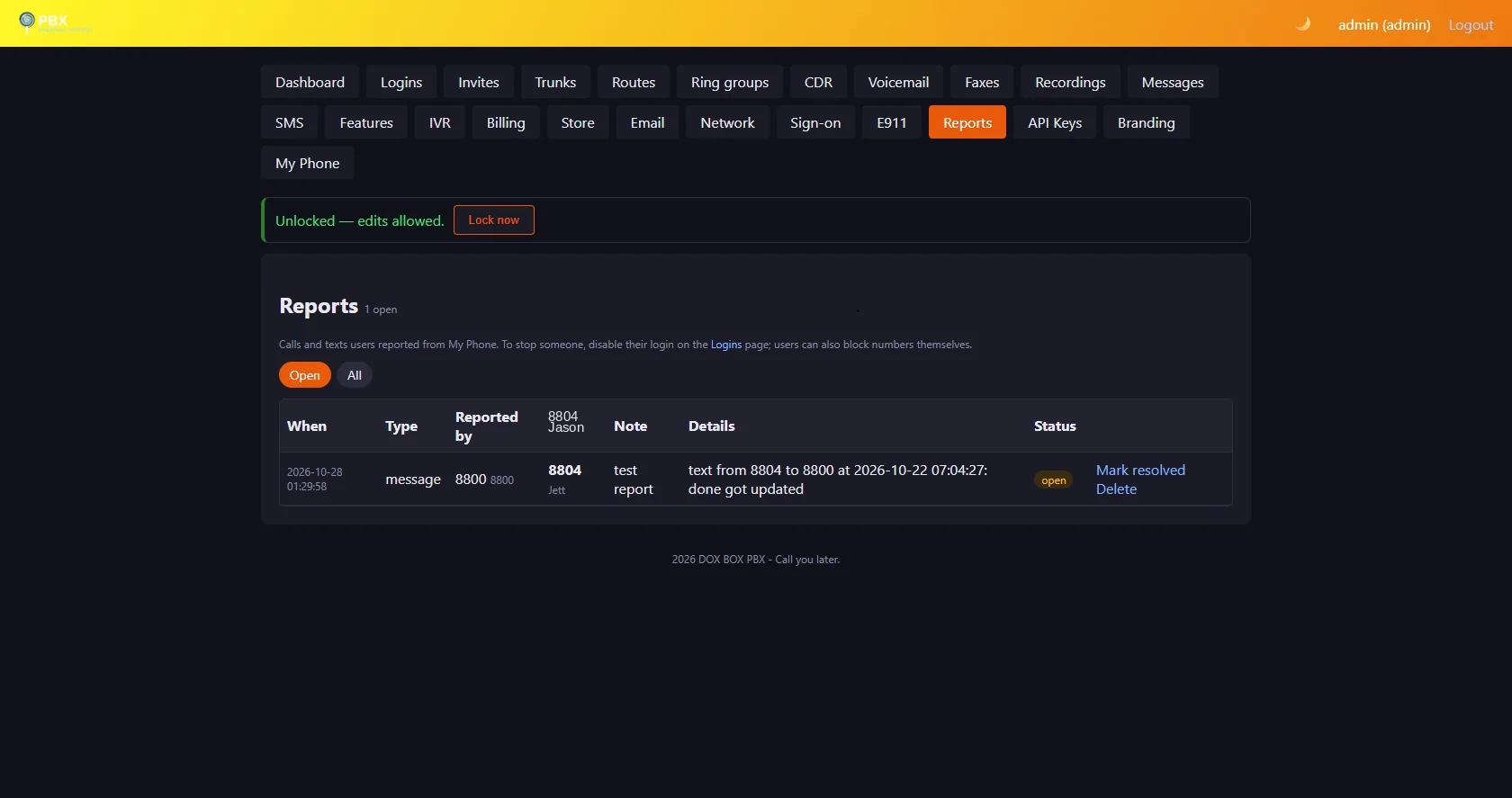
Calls and texts users reported from My Phone. Mark resolved, reopen or delete. To stop someone, disable their login.
API Keys
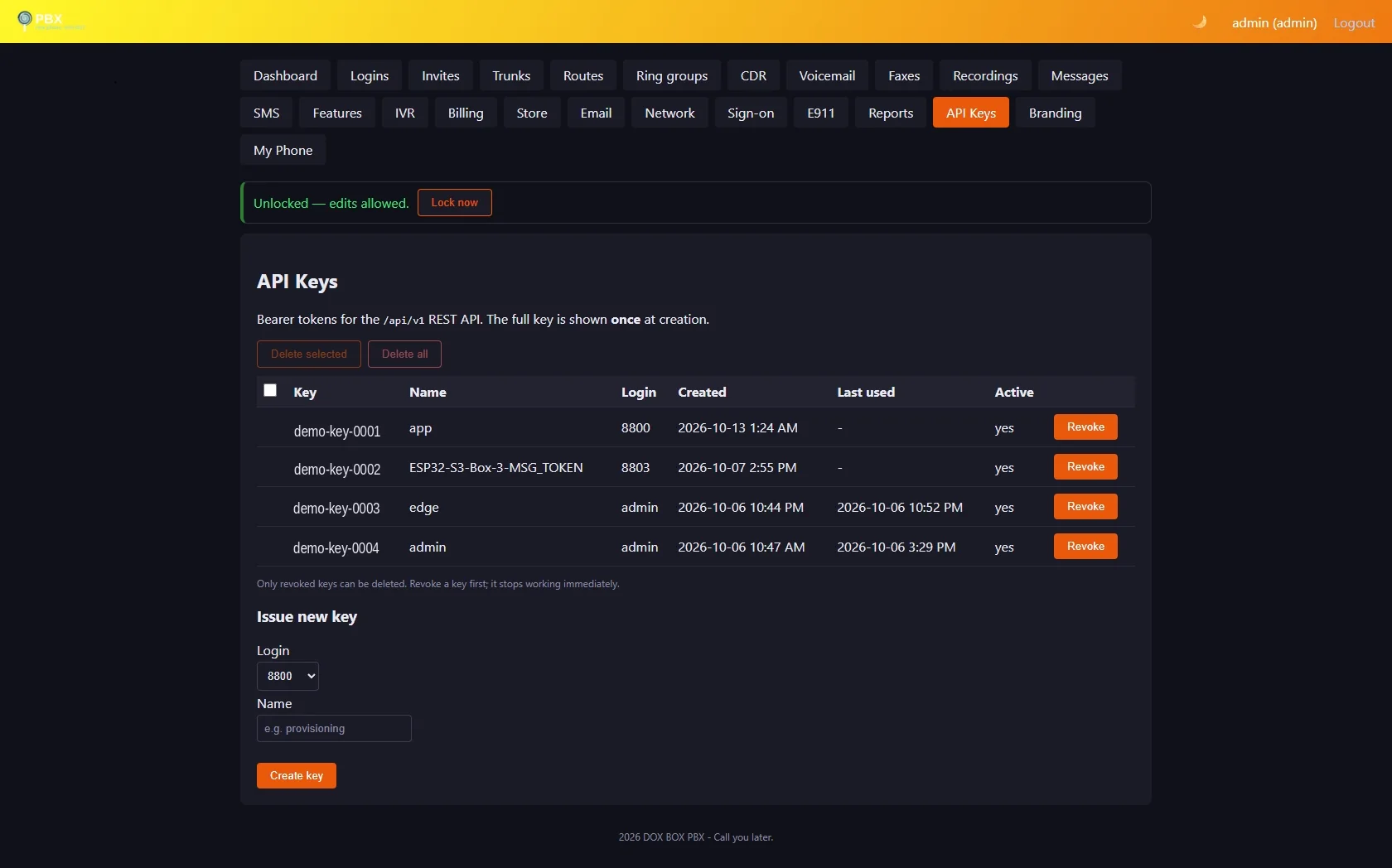
Bearer tokens for the REST API and for the edge's security alerts. A key is shown only once; revoke any time.
Features
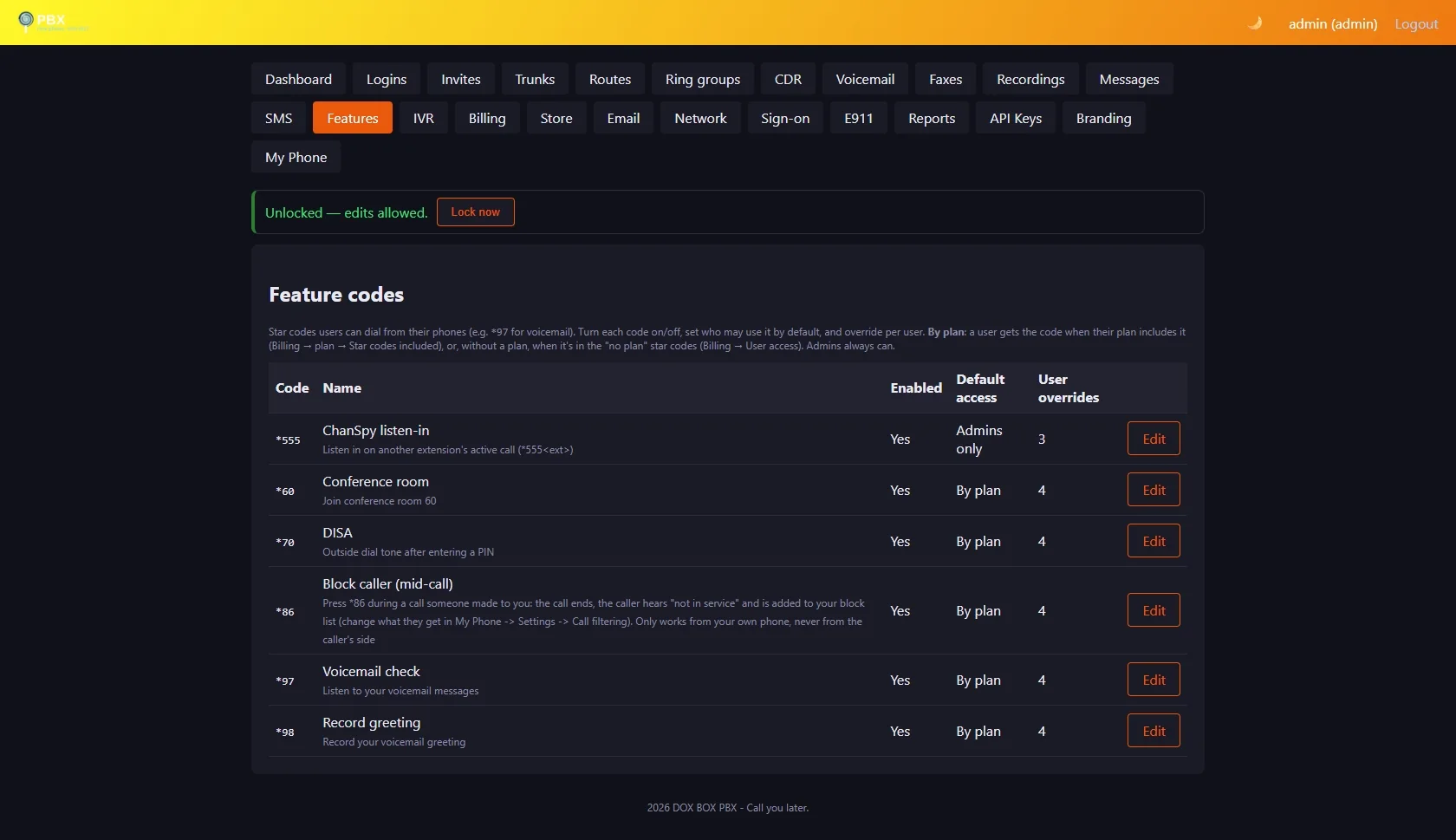
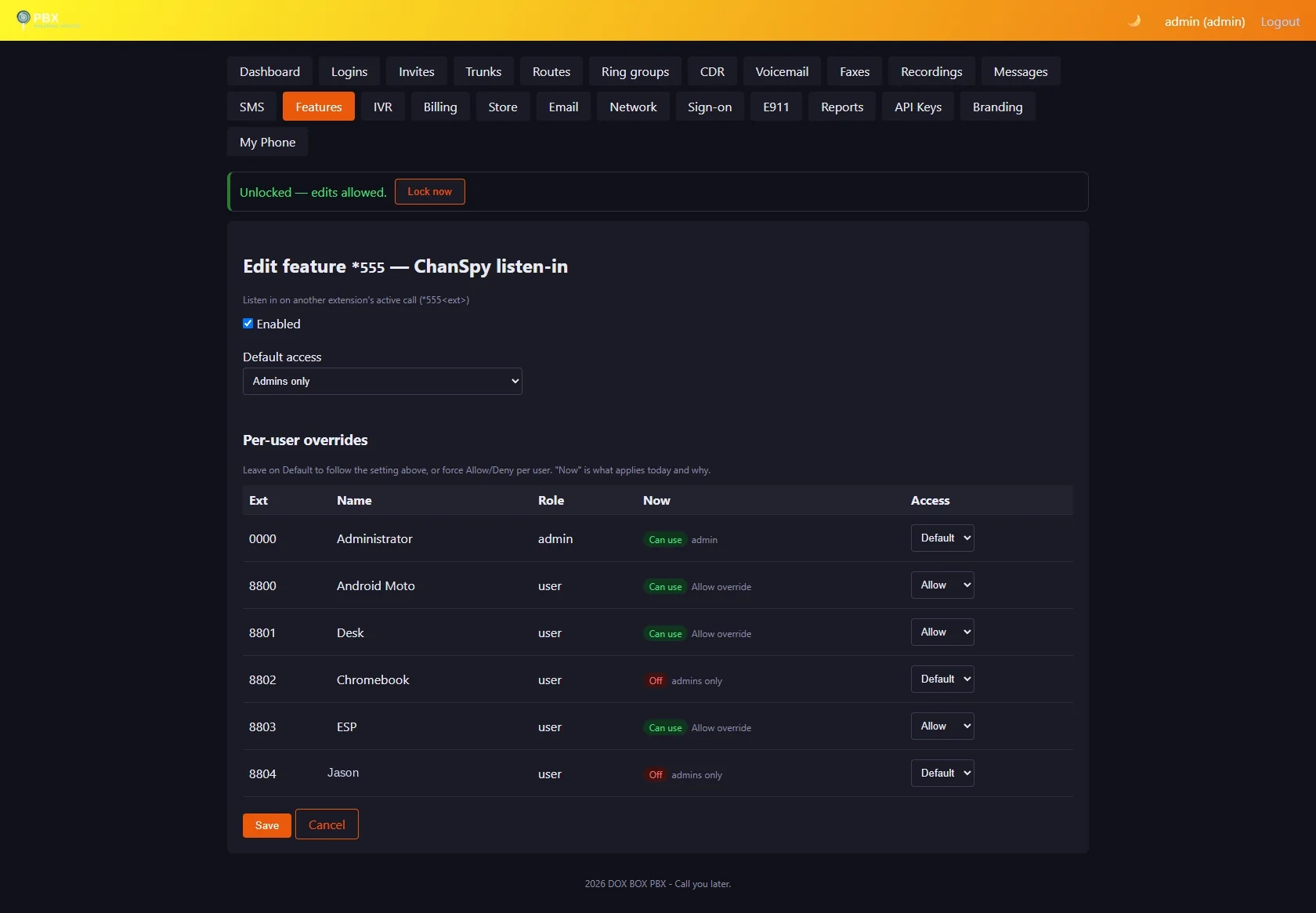
Controls every star code: on/off system-wide, default access (By plan / All users / Admins only / No one), and per-user Allow/Deny overrides. Each user's row shows whether they can use the code now and why. With By plan (the default), new accounts start with none and get the codes their plan includes — see star codes.
Branding
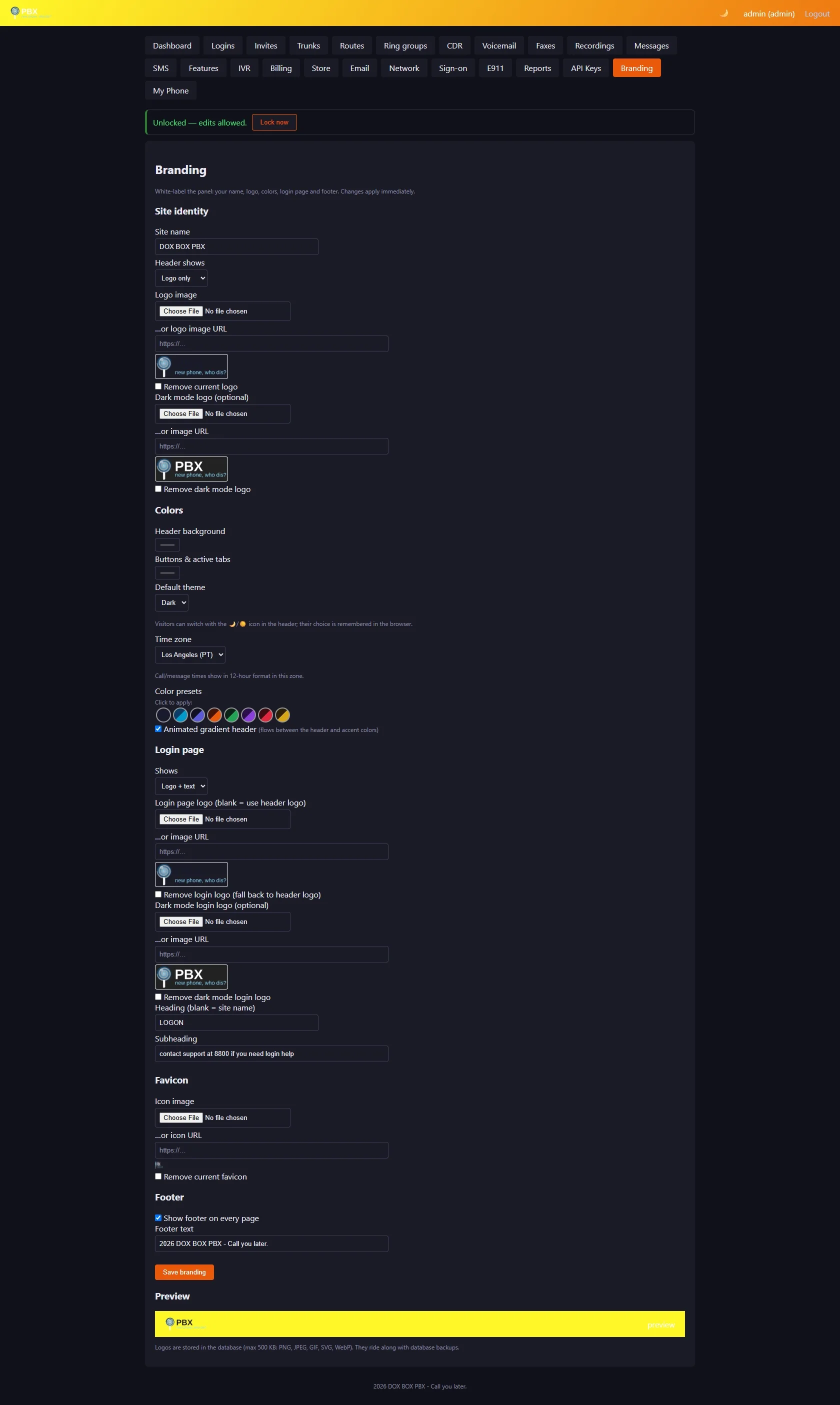
White-label the panel: site name, header logo (upload or URL — shown as text, logo, or both) with an optional separate dark-mode logo that auto-swaps with the theme, header and button colors with one-click presets (Ocean, Sunset, Royal…), animated gradient header, default dark/light theme (visitors can flip it with the 🌙/☀️ icon; their choice sticks in their browser), login page logo/title/subtitle (also with a dark-mode variant), favicon, and an optional footer line. Logos live in the database, so they ride along with backups. Regional: time zone selector (defaults to Los Angeles); all call, message, voicemail and recording times display in 12-hour format in that zone.
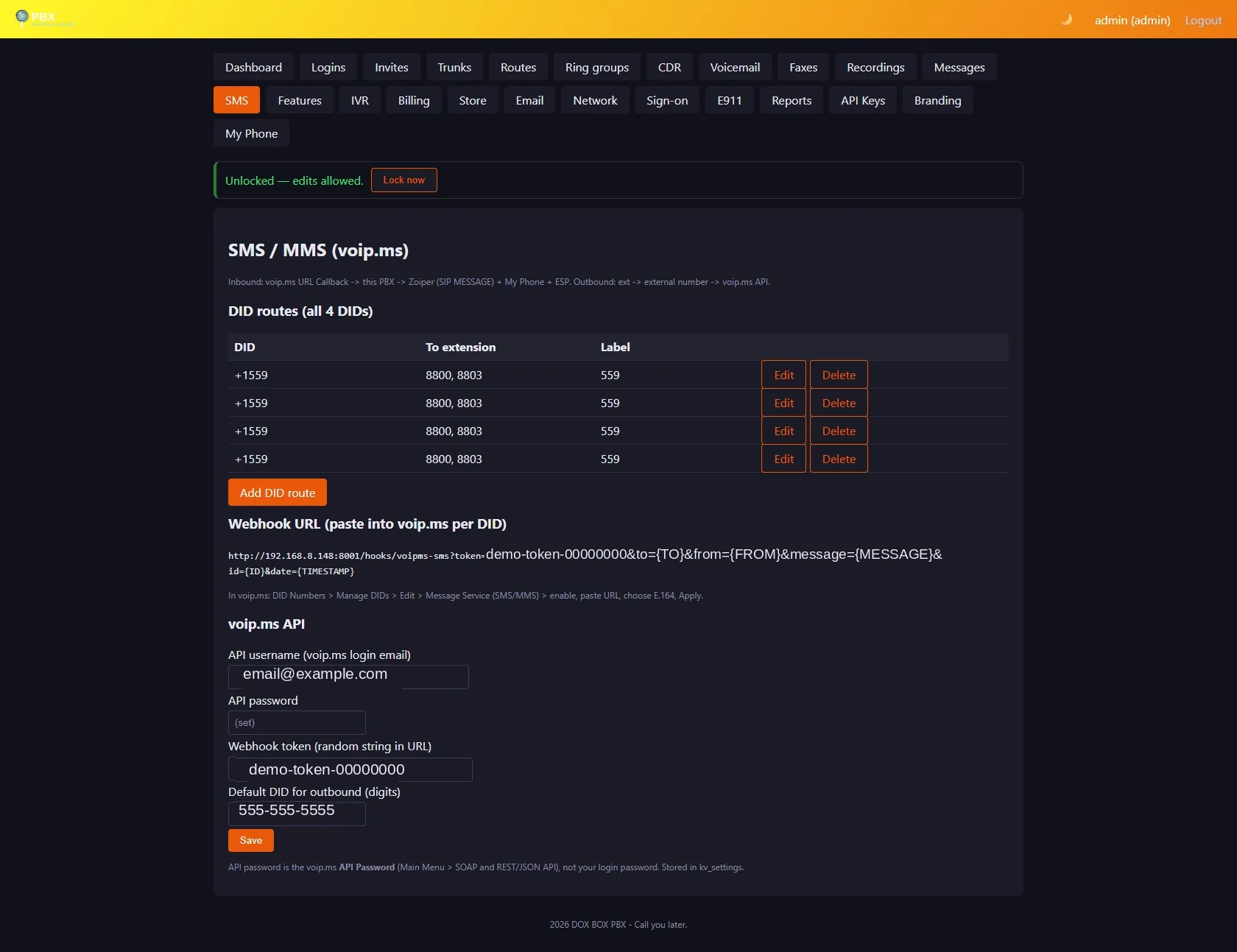
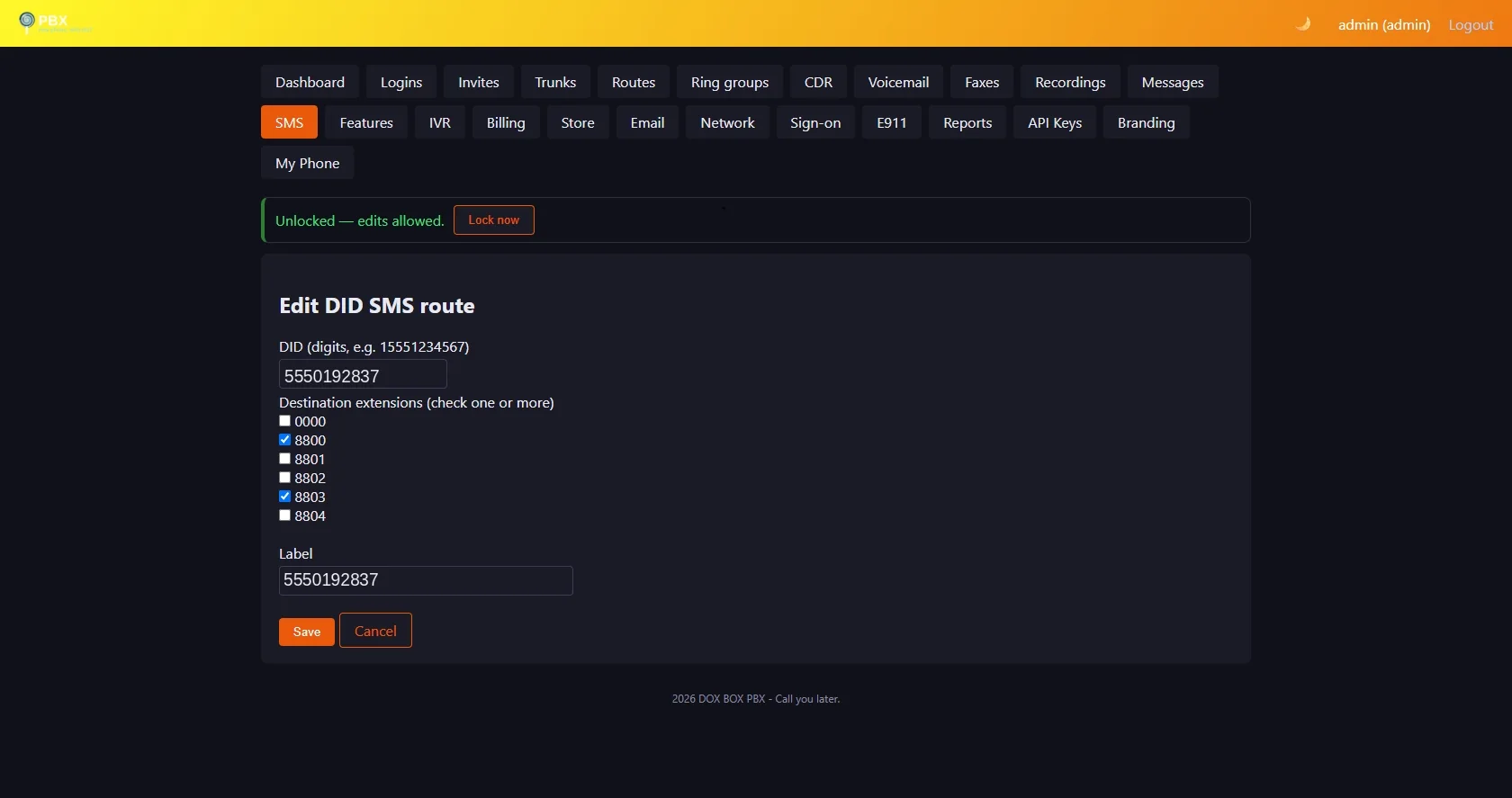
The admin panel in pictures
Every page of the admin panel, photographed on a running system, including the edit form behind each list. Phone numbers, keys, addresses and account names in the photos are demo values. Click any photo to pop it up full size; the ‹ › arrows move through the gallery without leaving the page.